
✨New feature alert
This feature is available from Wednesday 25th February 2026 .
Overview
A new option is now available that automatically sends a task to the learner when feedback is given on a Learning Journal entry. This feature strengthens learner accountability and improves visibility of feedback engagement.
Who Can Use This Feature?
- Assessors and Trainees
Steps
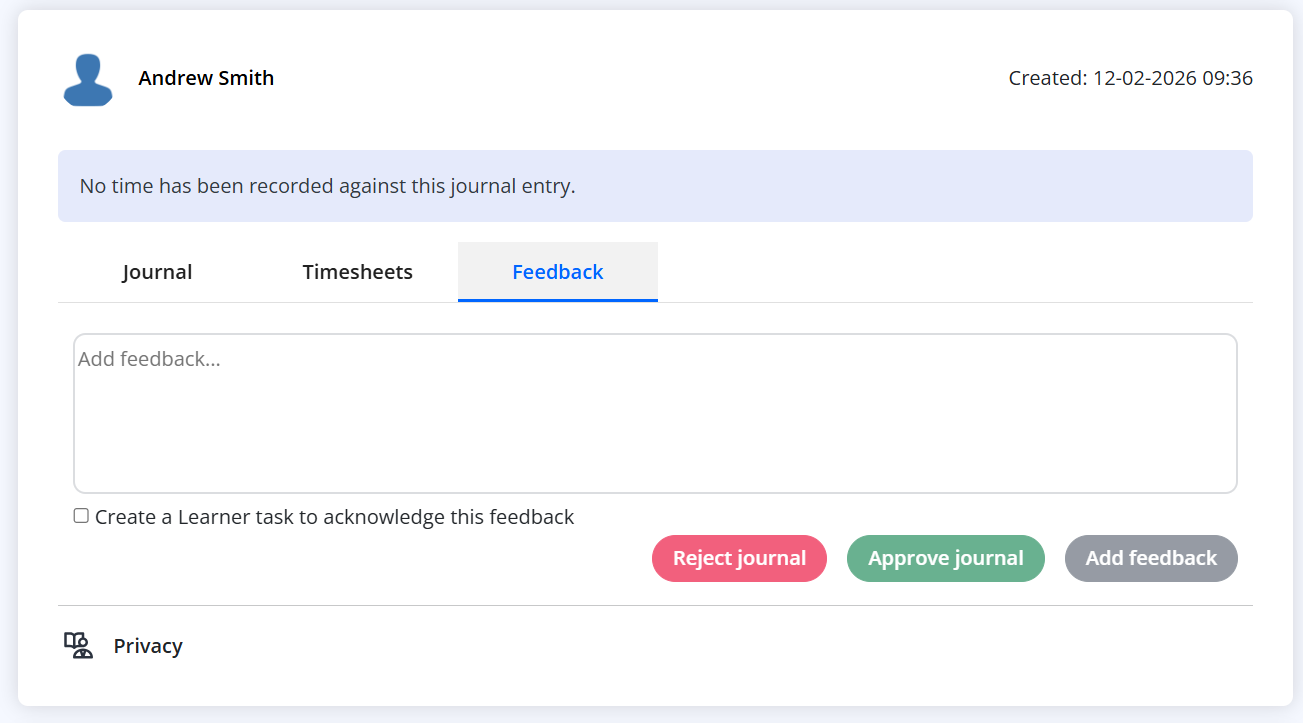
When submitting feedback, users can choose to automatically notify the learner:
- Leave feedback on the learner’s Learning Journal entry.
- Tick the checkbox “Create a Learner task to acknowledge this feedback”.
- If selected, a task will be automatically created for the learner and linked to the journal entry.
Automatic Tasks When Entries Are Rejected
- If a journal entry is rejected, a learner task is always created — even if the checkbox is not selected.
Learner Acknowledgement
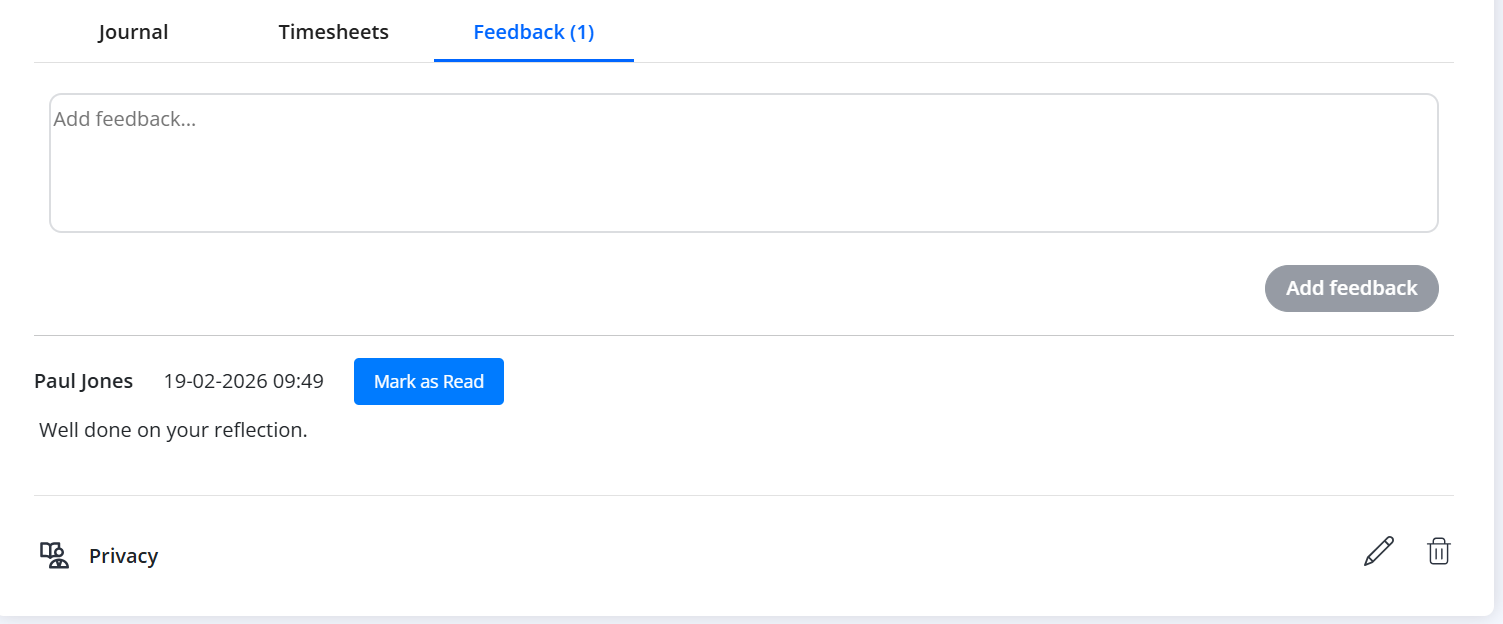
- The learner can access the journal entry directly from the task.
- They acknowledge the feedback by clicking “Mark as Read”.
- The system records and displays the exact date and time the learner read the feedback.
Tips & Notes
- This feature helps ensure feedback is seen, acknowledged, and actioned.
- Date and time tracking provides a clear audit trail of learner engagement.
- Tasks help learners stay on top of required actions following feedback or rejection.
Terminology
Please note that the terminology used in this article may differ depending on your Centre.
Related Articles
Need Help?
If you need assistance, please contact Onefile Support or your internal support team.