
✨ New feature alert
This feature is available from Wednesday 14 October 2026.
Overview
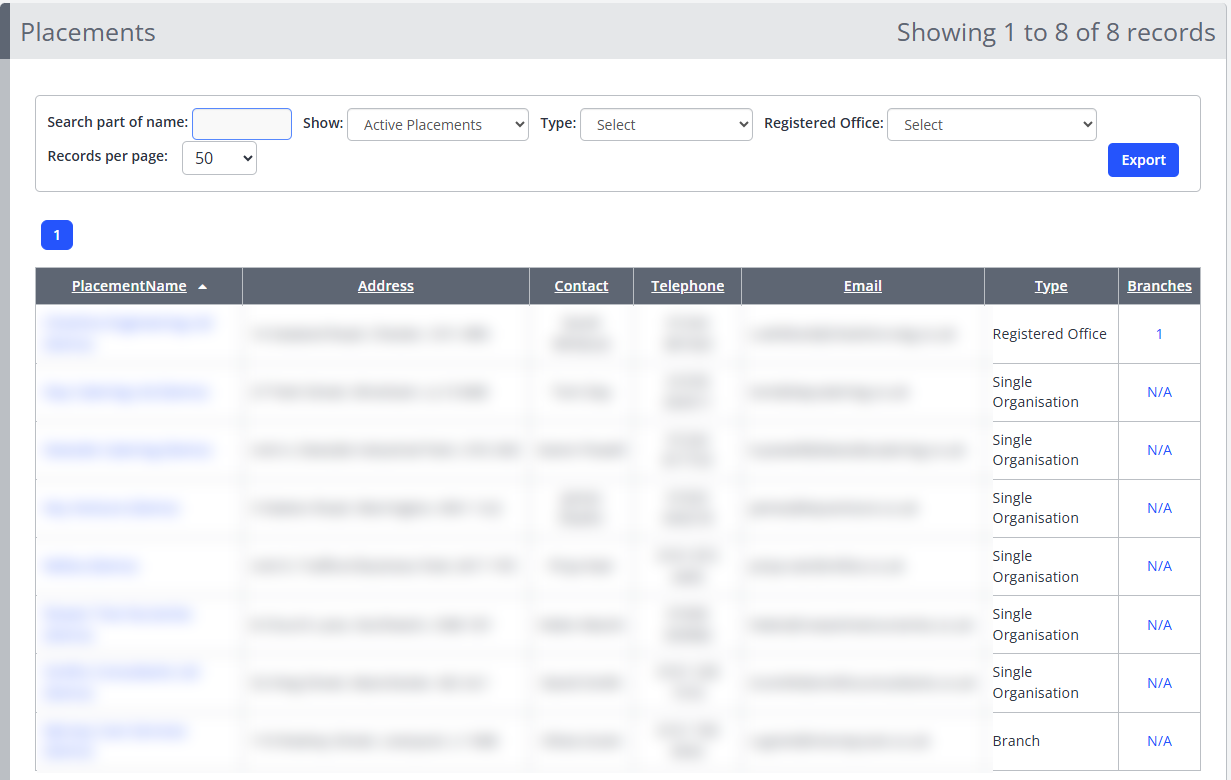
The Placements page now shows how Registered Offices and their Branches are linked, so you no longer need to work out these relationships from placement names alone. You can filter placements by type, choose a Registered Office from a dropdown, and see at a glance how many Branches each Registered Office has. This makes it quicker to find the right placement and see an organisation's full structure in one view.
What's Changed?
| Feature | What it does |
|---|---|
| Type filter | Filter placements by Registered Office, Branch, or Single Organisation. |
| Registered Office selector | Choose a Registered Office from a dropdown, alongside the existing search. The grid then shows the Registered Office and all of its Branches. |
| Branch count link | Each Registered Office shows how many Branches it has. Click the number to view the Registered Office and its Branches in the grid. |
Placement Types Explained
| Type | Description |
|---|---|
| Registered Office | The main organisation that one or more Branches are linked to. |
| Branch | A placement linked to a Registered Office. |
| Single Organisation | A standalone placement with no linked Registered Office or Branches. |
User Roles
This feature can be used by:
- Centre Manager
- User Manager
Steps to Filter Placements by Type
- Go to the Placements page.
- Open the Type filter.
- Select Registered Office, Branch, or Single Organisation.
- The grid updates to show only placements of the selected type.
Steps to View a Registered Office and Its Branches
- Go to the Placements page.
- Open the Registered Office dropdown, or use the search to find the Registered Office you need.
- Select the Registered Office.
- The grid shows the Registered Office together with all of its linked Branches.
Steps to Use the Branch Count Link
- Go to the Placements page.
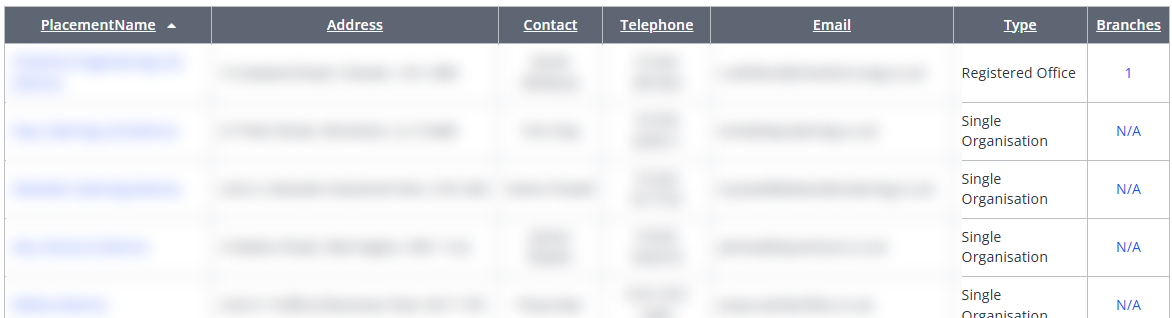
- Find the Registered Office in the grid. The number of linked Branches is shown against it.
- Click the Branch count number.
- The grid updates to show that Registered Office and all of its Branches.
Tips & Notes
- The Branch count link is the quickest way to see an organisation's full structure while you are browsing the grid.
- Use the Registered Office dropdown when you already know which organisation you are looking for.
- Filter by Single Organisation to check which placements are not linked to a Registered Office.
- The existing placement search still works as before — the dropdown is an additional way to find a Registered Office.
Terminology
The terminology used in this article may differ depending on your Centre's configuration.
Related Articles
Need Help?
If you need assistance, please contact Onefile Support or your internal support team.