
✨ New feature alert
This feature is available from Thursday, 19th November 2026.
Overview
When Inclusion is switched on, an Inclusion tab appears on the learner record. Use it to record the learner's monitoring information, characteristics, learning styles, barriers to learning and support needs. This information is passed to Onefile Eportfolio and Tracker when the learner moves across, so it doesn't need to be entered again.
The tab only shows the sections your Centre has ticked in Settings.
User Roles
This feature can be used by:
- Admin
- User
Steps to Open the Inclusion Tab
- Click Learners from the left-hand navigation menu.
- Click the three dots next to the learner and select View.
- Open the Inclusion tab.
- Find the section you want to update and click its Add button, for example Add Barrier.
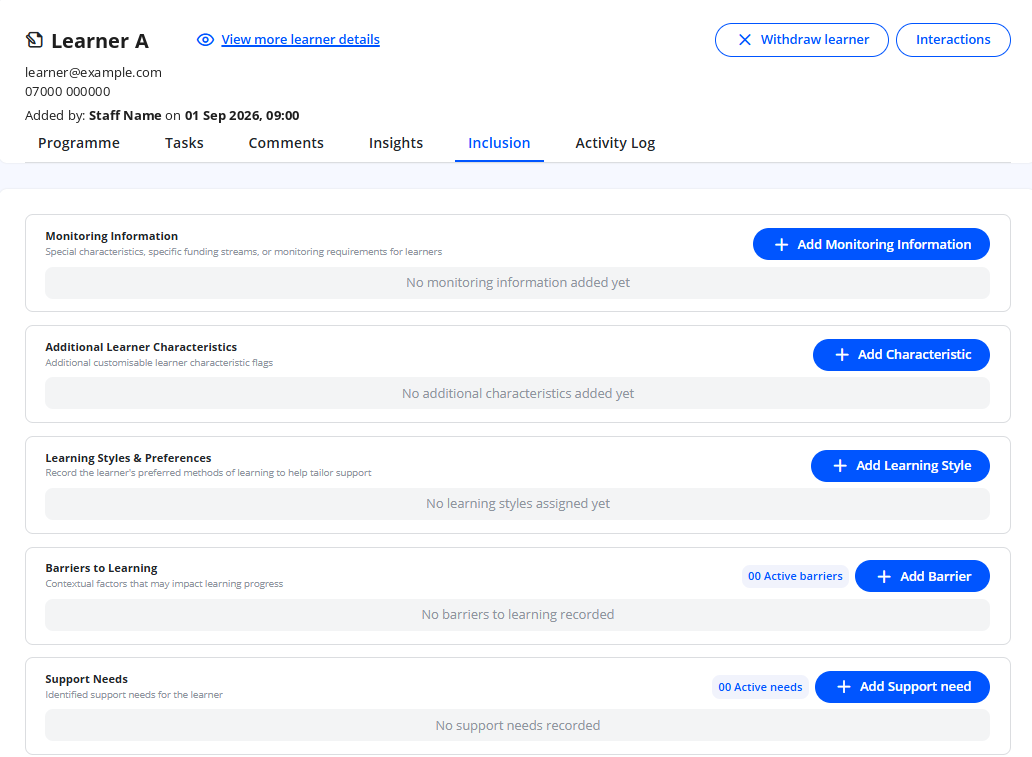
| Section | Button |
|---|---|
| Monitoring Information | Add Monitoring Information |
| Additional Learner Characteristics | Add Characteristic |
| Learning Styles & Preferences | Add Learning Style |
| Barriers to Learning | Add Barrier |
| Support Needs | Add Support need |
Monitoring Information
- Add one or more monitoring codes, for example HNS (High needs students), EHC (Education Health Care plan), DLA, SEN, NLM and FME.
- Each code shows its definition and an Effective From and Effective To academic year.
- Effective From defaults to the current academic year. Leave Effective To blank if the code has no end year.
- You can't add the same code twice for overlapping academic years.
⚠️ Important: The EHC code is kept in sync with the Education Health Care Plan tick box on the learner's Funding Eligibility tab. Adding or removing it in one place updates the other.
Additional Learner Characteristics
- Add one or more characteristics.
- Each characteristic can only be added once.
Learning Styles & Preferences
- Record the learner's preferred ways of learning, so support can be tailored to them.
- You can select several learning styles at once. Styles already recorded aren't offered again.
Barriers to Learning and Support Needs
| Barriers to Learning | Support Needs | |
|---|---|---|
| Details recorded | Type, start date, optional end date, and the impact on the learner's learning | Type, start date, optional end date, and a description |
| Status | Shows as Ongoing or Ended, based on its dates. Leave the end date blank if it's ongoing. | |
| Visibility | Choose whether it's visible to the learner and the employer. New entries are visible to both by default. | |
The Barriers to Learning and Support Needs sections also show how many are currently active, for example 2 Active barriers.
Tips & Notes
- If the Inclusion tab isn't showing, an Admin needs to switch on Use Inclusion in Settings › Inclusion.
- If a section is missing from the tab, it hasn't been ticked in Settings.
- If the option you need isn't in a list, ask your Admin to add it in Onefile Eportfolio, where the lists are managed.
- Information learners submit on a form is saved to this tab. Check the visibility of any barriers and support needs they've added.
Terminology
The terminology used in this article may differ depending on your Centre's configuration.
Related Articles
- Set Up Inclusion in Enrol Onboarding
- Add Inclusion Sections to a Form in Enrol Onboarding
- Edit a learner within Enrol Onboarding
- Record Barriers to Learning and Support Needs in Onefile Inclusion
Need Help?
If you need assistance, please contact Onefile Support or your internal support team.