
Overview
You can duplicate an existing course to create a new version that can be edited and customised before assigning it to learners. This is useful when reusing course structures or creating variations for different cohorts.
User Roles
This feature can be used by:
- Centre Manager
- Assessor (with permissions)
Permissions
- VLE Tutor
Steps to Duplicate a Course
- Click Courses from the left navigation bar.
- Click on the course you want to duplicate.
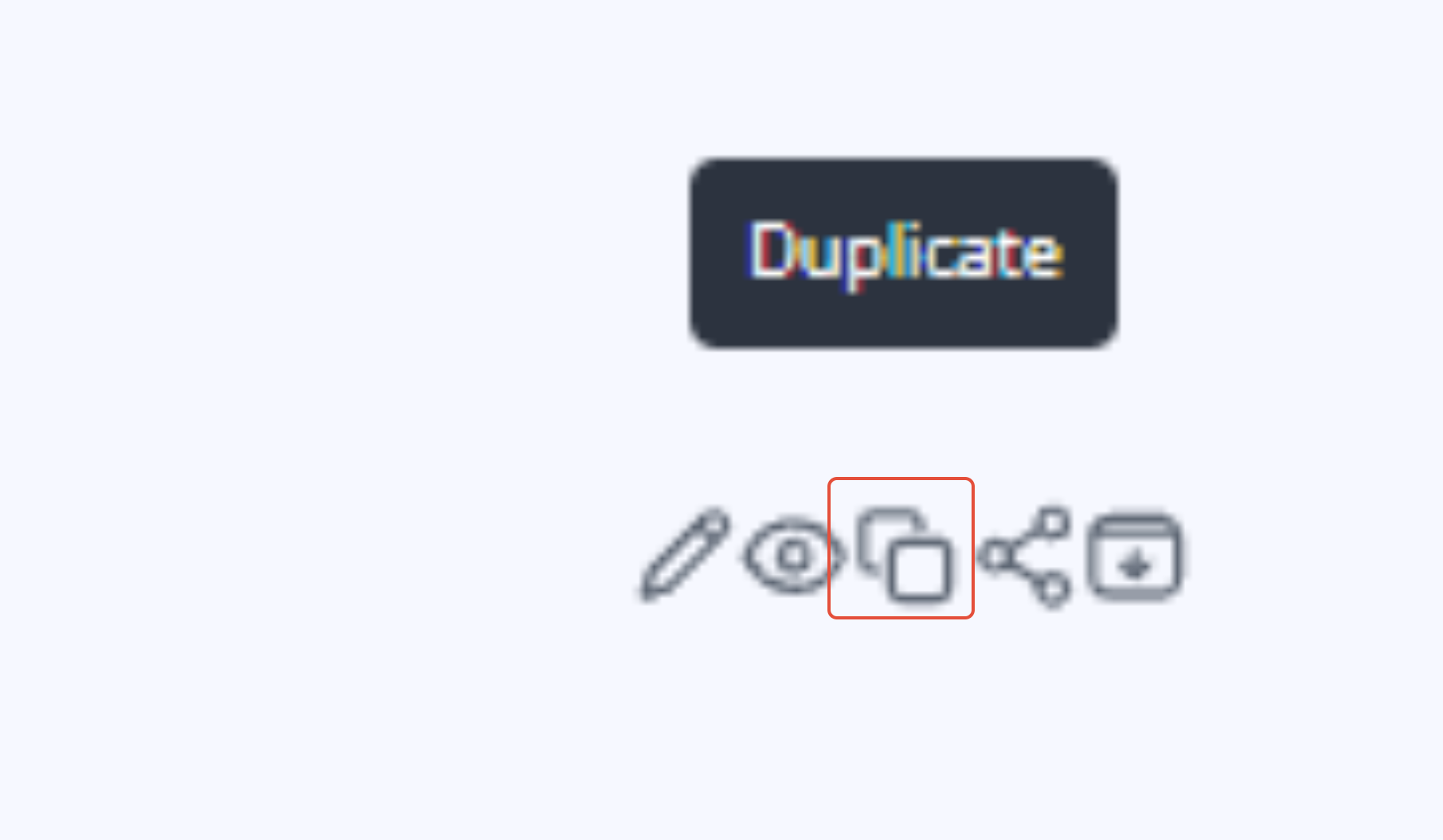
- Click Duplicate.
- Add a name for the duplicated course.
- Click Next.
- Select the modules you want to include in the duplicate.
- Click Duplicate.
- Click Go to course.
You will now be able to edit the course and publish it before assigning it to your learners.
Tips & Notes
- Duplicating a course does not affect the original version.
- You can remove or reorder modules after duplication if required.
- Ensure the duplicated course is published before assigning it to learners.
Terminology
The terminology used in this article may vary depending on your Centre’s configuration.
Related Articles
Need Help?
If you need assistance, please contact Onefile Support or your internal support team.