
Overview
The Quiz Settings feature allows you to customise how quizzes behave within a course. These settings control quiz difficulty, structure, timing, and how learners interact with quiz content in the Onefile Eportfolio VLE.
Available Settings
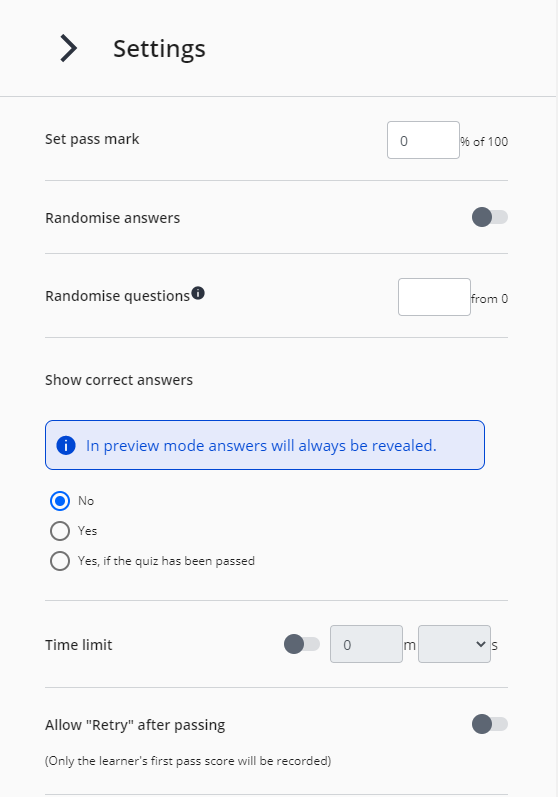
- Pass Mark: Define the minimum score required to pass the quiz.
- Randomize Answers: Shuffle the order of answers for each question.
- Randomize Questions: Shuffle the order of questions within the quiz.
- Show Correct Answers: Choose whether learners can view correct answers after completing the quiz.
- Time Limit: Set a time limit for completing the quiz.
- Allow Retakes: Enable learners to retake the quiz after completion.
User Roles
This feature can be used by:
- Centre Manager
- Assessor (with permissions)
Permissions
To edit Quiz Settings, the user must have the VLE Tutor permission assigned.
Steps
How to Access Quiz Settings
- Click Courses from the left-hand navigation bar.
- Create a new course or click Edit on an existing Draft Course.
- Create a Quiz Page or select an existing quiz page.
- Click Settings to configure the quiz options.
Tips & Notes
- Randomising questions and answers helps prevent memorisation and encourages active learning.
- Retakes can be used to reinforce learning or support mastery-based progression.
- Ensure Pass Marks align with Centre assessment policies.
Terminology
Please note that terminology used in this article may differ depending on your Centre.
Related Articles
Need Help?
If you experience any issues or have questions, please contact Onefile Support or your internal support channels.