
✨ Updated feature alert
This feature update is available from Thursday, 19th November 2026.
Overview
Employer accounts within Enrol Onboarding let Admins and Users record employer details, link learners to the correct organisation and make sure onboarding information is captured accurately. Employer records include key details such as organisation name, contact information and employer type.
To help prevent duplicates, Enrol Onboarding shows you any similar employers that already exist while you create a new one.
What's Changed?
| Before | From 19 November 2026 |
|---|---|
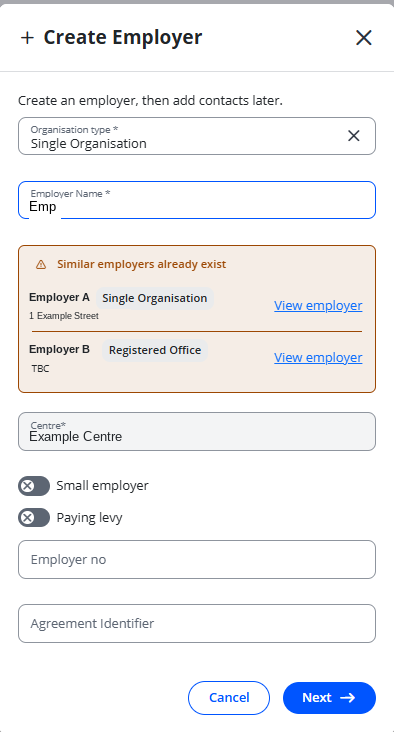
| A Name Already Exists pop-up appeared only for an exact name match. | After you type 3 or more characters of the name, similar employers are listed under the name field, with their address. |
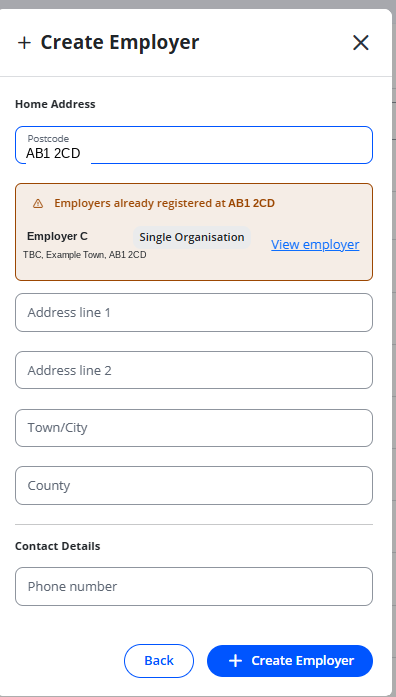
| Postcodes weren't checked. | Entering a postcode lists any employers already registered at that postcode. |
| Archived employers weren't shown. | Archived employers are included and marked as archived, so you can unarchive one instead of creating a duplicate. |
| Employer dropdowns showed names only. | The employer dropdowns on Create Learner and Edit Details show each employer's postcode and can be searched by postcode. |
User Roles
This feature can be used by:
- Admin
- User
Steps to Create an Employer
- Click Employers from the left-hand menu.
- Click Create Employer.
- Start typing the employer's name. After 3 characters, any similar employers are listed under the name field with their address.
- Enter the postcode. Any employers already registered at that postcode are listed.
- Check the lists. If the employer already exists, use the existing record instead. If it's archived, you can unarchive it.
- Complete the remaining Employer Details.
- Click Create Employer to save.
How Similar Names Are Matched
Name matching ignores small differences such as Ltd, Limited, The and &. For example, "The Example Company Ltd" and "Example Company Limited" are shown as similar.
⚠️ Important: These are warnings only. If the employer is genuinely different, you can still create it.
Tips & Notes
- Make sure employer details are entered correctly, as they're linked to learner onboarding records.
- Employers must be created or imported before learners can be linked to them.
- A contact can be linked to multiple employers when creating an employer contact.
- Employer records can be edited, archived or deleted later if required.
- When creating a learner, the system checks whether the selected employer is levy-funded and shows the matching Funding Type options: Levy or Gifted Levy for levy-funded employers, and Non-levy or Gifted Levy for non-levy employers. The Levy type is stored on the learner's employer tab, can be edited after creation, has no default value and is recorded in the learner's audit history.
- The employer record includes an Agreement Identifier field, aligned with the ILR Specification 2026 to 2027. It can be captured by the training provider and/or the employer, is available as a pre-pop field, and is sent to Onefile Eportfolio through the Create/Update Employer event.
Terminology
The terminology used in this article may differ depending on your Centre's configuration.
Related Articles
- Import Employers from Enrol into Enrol Onboarding
- Archive an Employer within Enrol Onboarding
- Edit an Employer record in Enrol Onboarding
- Create a learner within Enrol Onboarding