
Overview
A match rule decides how an incoming record is matched to an existing learner in Onefile, and what happens when there's no match. You choose which fields are compared, how much weight each one carries, and a confidence threshold. Records that need a decision appear in Match Review.
User Roles
This feature can be used by:
- Centre Manager
Steps to Create a Match Rule
- Go to Data Bridge › Match Rules and select to add a new match rule.
- Choose the Mapping the rule applies to (for example, EBS Learners).
- Set a Confidence threshold (for example, 0.95) — the score a match must reach to be accepted.
- Set On no match — for example, Create to create a new record when no existing learner matches.
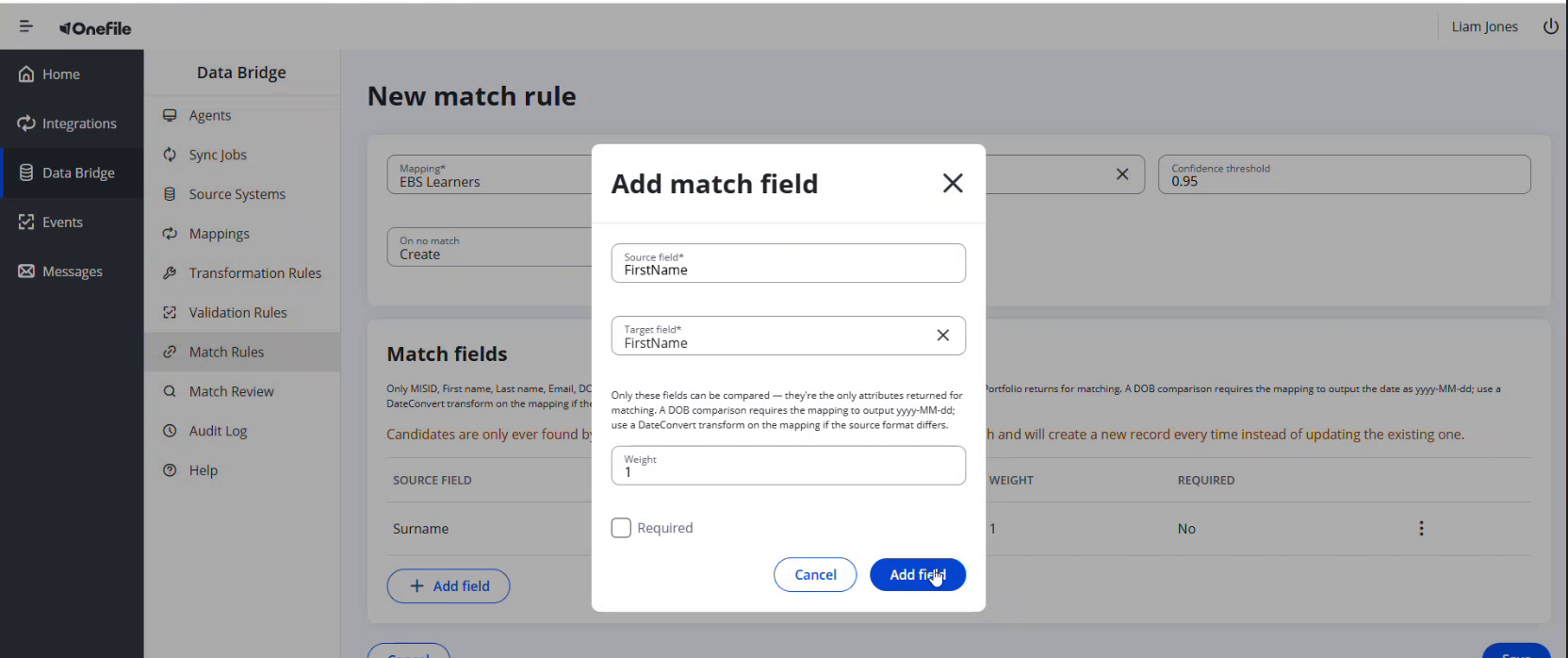
- Under Match fields, select Add field and set, for each field: Source field, Target field, Weight, and whether it's Required.
- Save the match rule.
⚠️ Important: With "On no match" set to Create, Data Bridge creates a new record every time it can't match, instead of updating an existing one. Make sure your match fields are strong enough to find existing learners reliably.
Fields You Can Match On
- Only certain attributes can be compared, as these are the only ones returned for matching — for example, MISID, First name, Last name, Email, and DOB.
- A DOB comparison requires the mapping to output the date as yyyy-MM-dd. If your source format differs, add a DateConvert transform on that field in the mapping.
Reviewing Matches
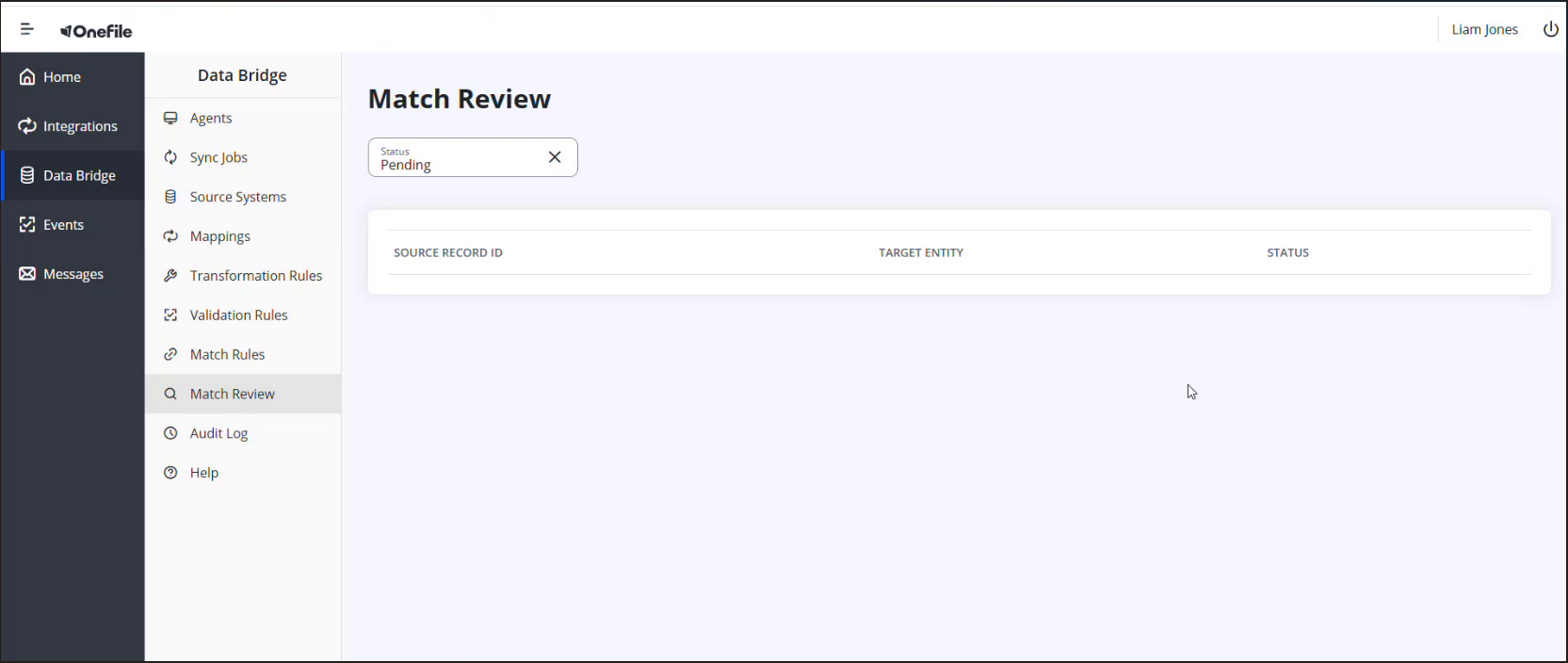
Go to Data Bridge › Match Review to see records awaiting a decision. You can filter by Status (for example, Pending). Each row shows the Source Record ID, the Target Entity, and the Status.
Tips & Notes
- Give the most reliable identifiers (such as MISID) the highest weight so confident matches are found automatically.
- Check Match Review regularly so pending records don't build up.
Terminology
The terminology used in this article may differ depending on your Centre's configuration.
Related Articles
- Creating a Field Mapping in Data Bridge
- Creating Transformation Rules in Data Bridge
- Viewing the Data Bridge Audit Log
Need Help?
If you need assistance, please contact Onefile Support or your internal support team.