
Overview
A mapping tells Data Bridge which fields in your source system go to which fields in Onefile. Each mapping is tied to a source system, a target entity (such as Learner), and a source entity (the table or view the data comes from). You then line up each source field with its Onefile target field.
User Roles
This feature can be used by:
- Centre Manager
Mapping Details
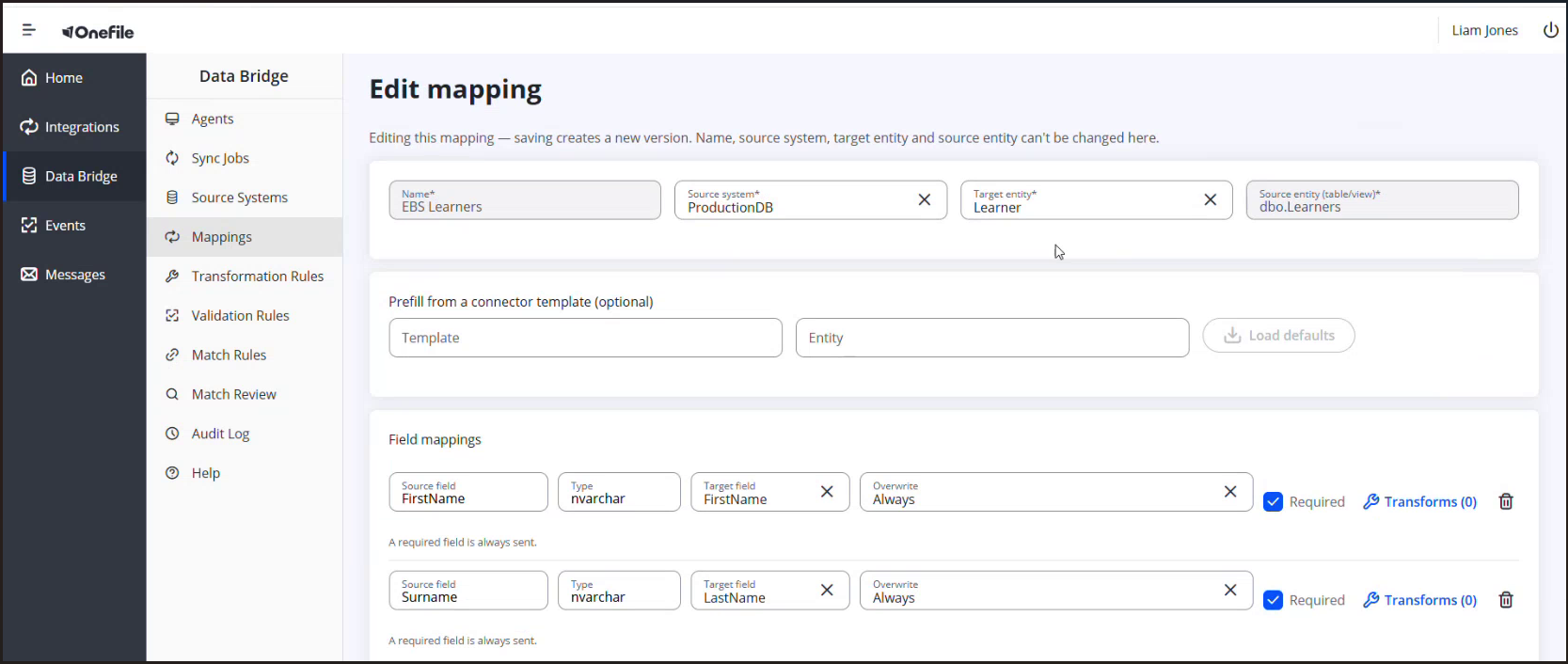
At the top of a mapping you set:
| Field | Description |
|---|---|
| Name | A name for the mapping (for example, "EBS Learners"). |
| Source system | The source system the data comes from (for example, ProductionDB). |
| Target entity | The Onefile entity being populated (for example, Learner). |
| Source entity (table/view) | The table or view in your database (for example, dbo.Learners). |
⚠️ Important: When you edit an existing mapping, saving creates a new version. The Name, Source system, Target entity, and Source entity can't be changed on an existing mapping.
Steps to Map Your Fields
- Open Data Bridge › Mappings and create a new mapping, or open an existing one.
- Set the mapping's Name, Source system, Target entity, and Source entity.
- (Optional) Under Prefill from a connector template, choose a Template and Entity and select Load defaults to start from a set of standard mappings.
- In Field mappings, add a row for each field, setting:
- Source field — the field name in your database.
- Type — the source field's data type (for example, nvarchar).
- Target field — the Onefile field it maps to.
- Overwrite — when the Onefile value should be overwritten (for example, Always).
- Required — tick if the field must always be sent.
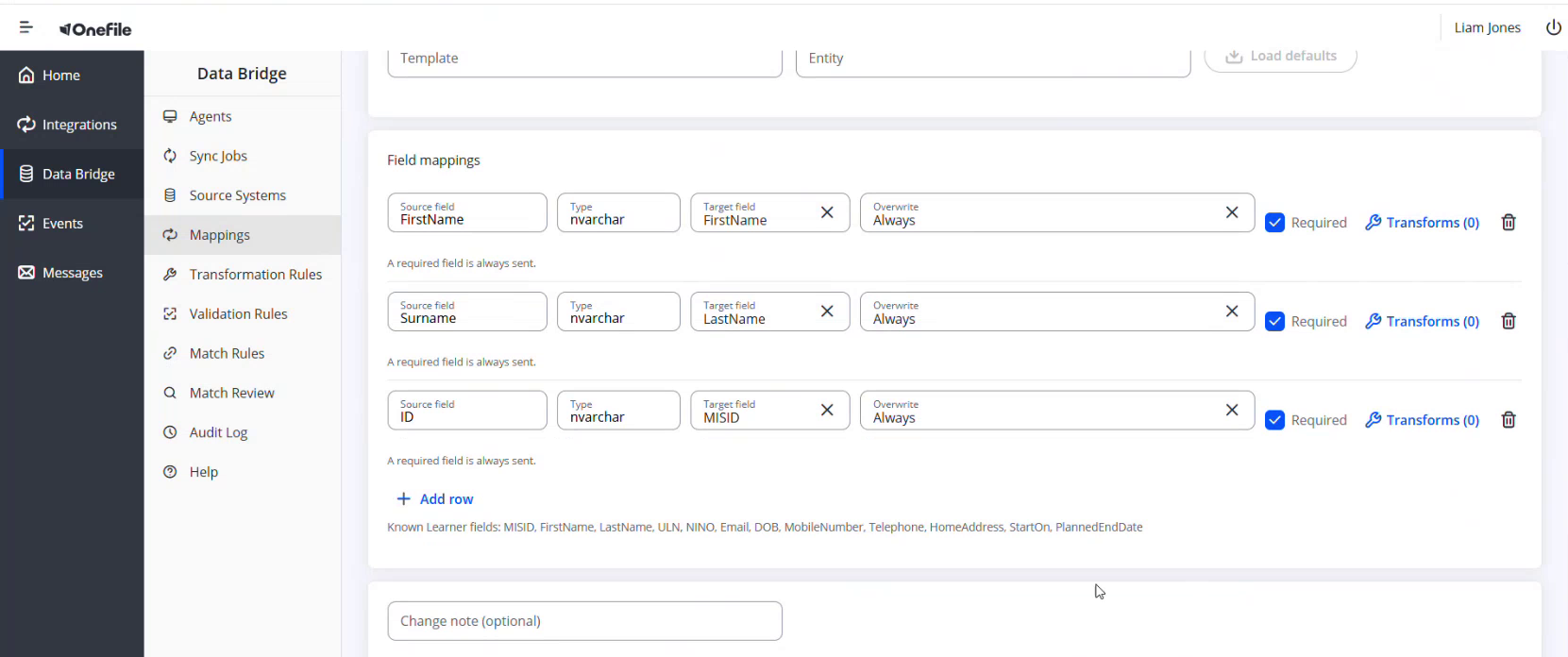
- Select Add row to add more field mappings.
- (Optional) Add a change note, then select Save new version.
Applying a Transformation to a Field
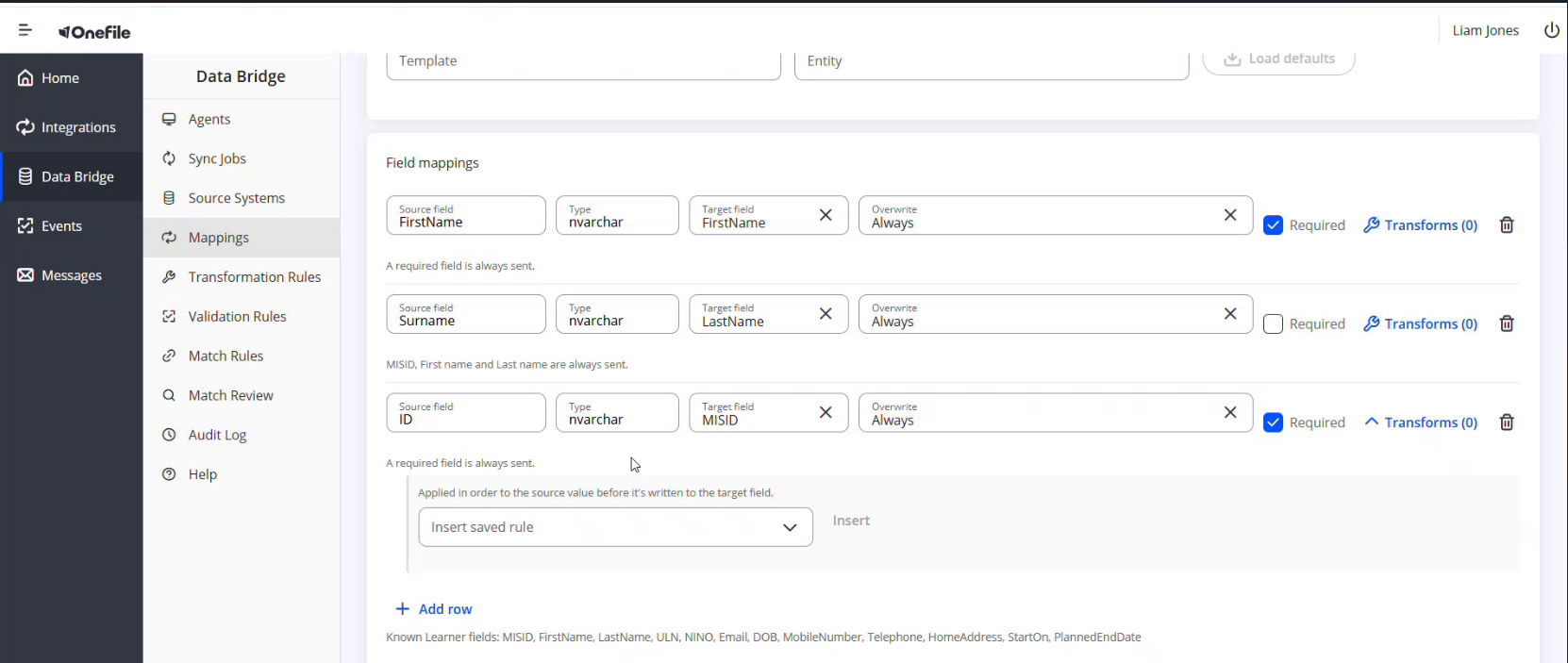
Each field row has a Transforms option. Use it to apply one or more saved transformation rules to that field — for example, to convert a date format or map codes to Onefile values. Transforms are applied in order to the source value before it's written to the target field.
Tips & Notes
- MISID, First name, and Last name are always sent, and any field marked Required is always sent.
- Known Learner fields include: MISID, FirstName, LastName, ULN, NINO, Email, DOB, MobileNumber, Telephone, HomeAddress, StartOn, and PlannedEndDate.
- To reuse a transformation across fields or mappings, set it up first under Transformation Rules, then insert it on the field here.
Terminology
The terminology used in this article may differ depending on your Centre's configuration.
Related Articles
- Adding a Source System in Data Bridge
- Creating Transformation Rules in Data Bridge
- Setting Up Match Rules and Reviewing Matches in Data Bridge
Need Help?
If you need assistance, please contact Onefile Support or your internal support team.