
Overview
The Data Bridge agent is a small Windows console app you run on a machine inside your network. It pulls its configuration from the Data Bridge portal, reads from your MIS database, and pushes records to Onefile over outbound HTTPS only. You do not need to open any inbound ports for it. This article explains how to register the agent, validate it, and run a sync.
User Roles
This feature can be used by:
- System Administrator (with access to your MIS database and a Windows machine that can reach the internet)
Step 1: Register an Agent in the Portal
In Data Bridge › Agents, enter an agent name and select Register Agent. This issues the agent's API key.
⚠️ Important: The API key is shown only once, so copy it straight away.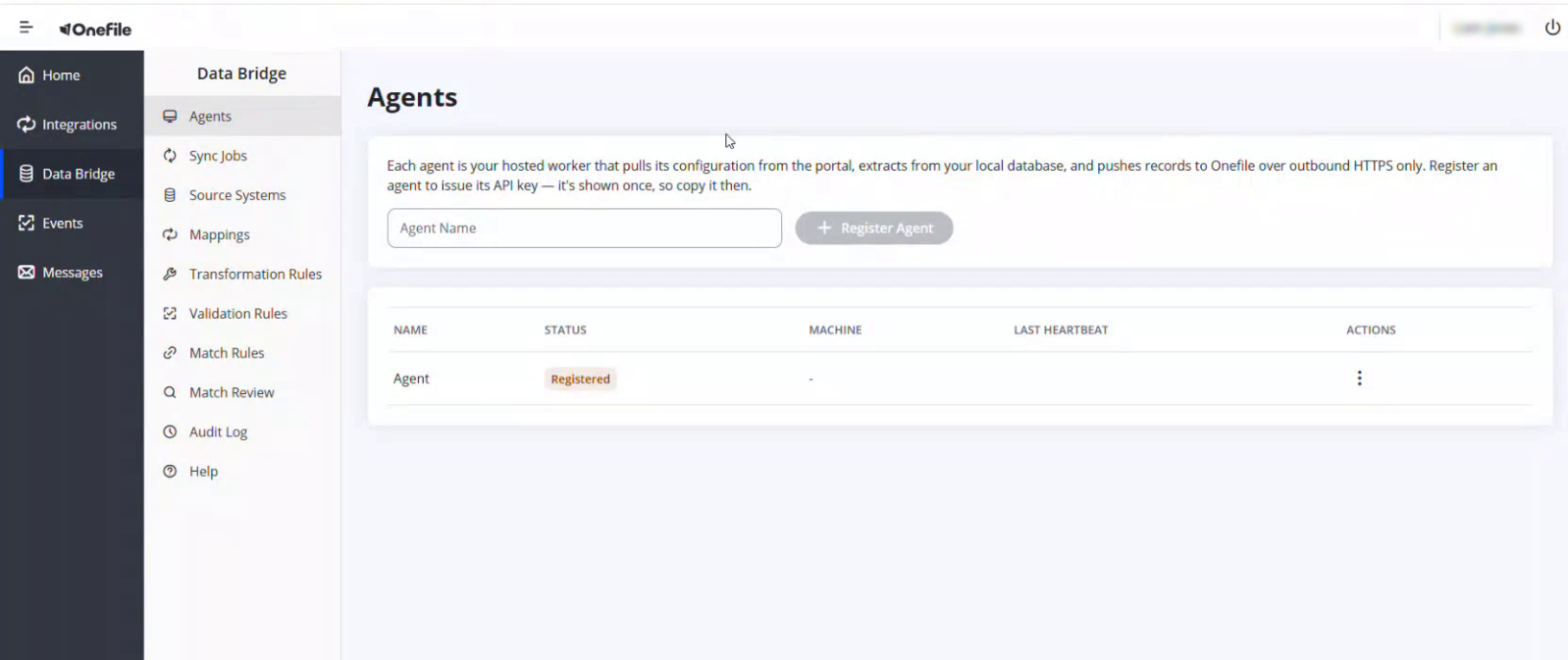
Step 2: Download and Set Up the Agent
On the Help page, select Download agent and save it to a Windows machine that can reach both your MIS database and the internet. Then run the commands below, entering the API key and database connection string at the hidden prompts when asked.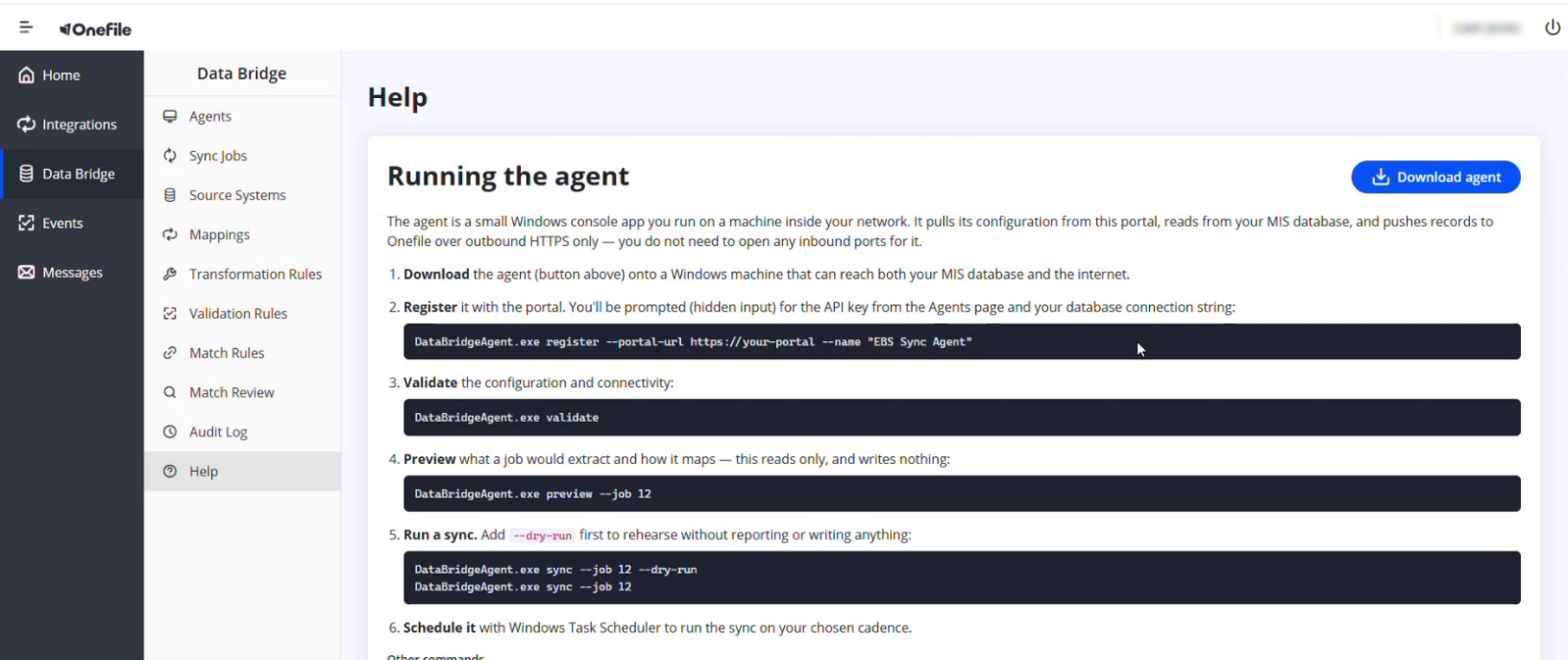
- Register the agent with the portal:
DataBridgeAgent.exe register --portal-url https://your-portal --name "EBS Sync Agent" - Validate the configuration and connectivity:
DataBridgeAgent.exe validate - Preview what a job would extract and how it maps (this reads only, and writes nothing):
DataBridgeAgent.exe preview --job 12 - Run a sync. Add
--dry-runfirst to rehearse without reporting or writing anything, then run it for real:DataBridgeAgent.exe sync --job 12 --dry-runDataBridgeAgent.exe sync --job 12 - Schedule it with Windows Task Scheduler to run the sync on your chosen cadence.
Other Commands
schema-check --source-system <id>— captures your source schema and uploads it so the portal can flag structural drift.writeback --source-system <id>— previews pending Onefile → MIS write-backs (a dry run by default); add--executeto apply them live.- Run any command with
--helpto see all its options, and use the global--config-pathto keep configuration in a custom location.
Tips & Notes
- Secrets (API key, connection string) are entered at hidden prompts and stored encrypted on the machine with Windows DPAPI — never in command-line arguments, logs, or the portal.
- Always preview or use
--dry-runbefore your first live sync, so you can see what will be sent without writing anything. - The agent needs outbound HTTPS only — no inbound ports.
Terminology
The terminology used in this article may differ depending on your Centre's configuration.
Related Articles
- What Is Data Bridge in Onefile?
- Adding a Source System in Data Bridge
- Creating a Field Mapping in Data Bridge
Need Help?
If you need assistance, please contact Onefile Support or your internal support team.