
Overview
A source system is the database Data Bridge reads from — for example, your MIS running on SQL Server. You add it in the portal so that your mappings and sync jobs know where the data comes from. The connection to the database itself is made by the agent on your own machine, not from the portal.
User Roles
This feature can be used by:
- Centre Manager
Steps to Add a Source System
- Go to Data Bridge › Source Systems.
- Select Add source system.
- Give the source system a name and choose its database type (for example, SqlServer).
- Save the source system.
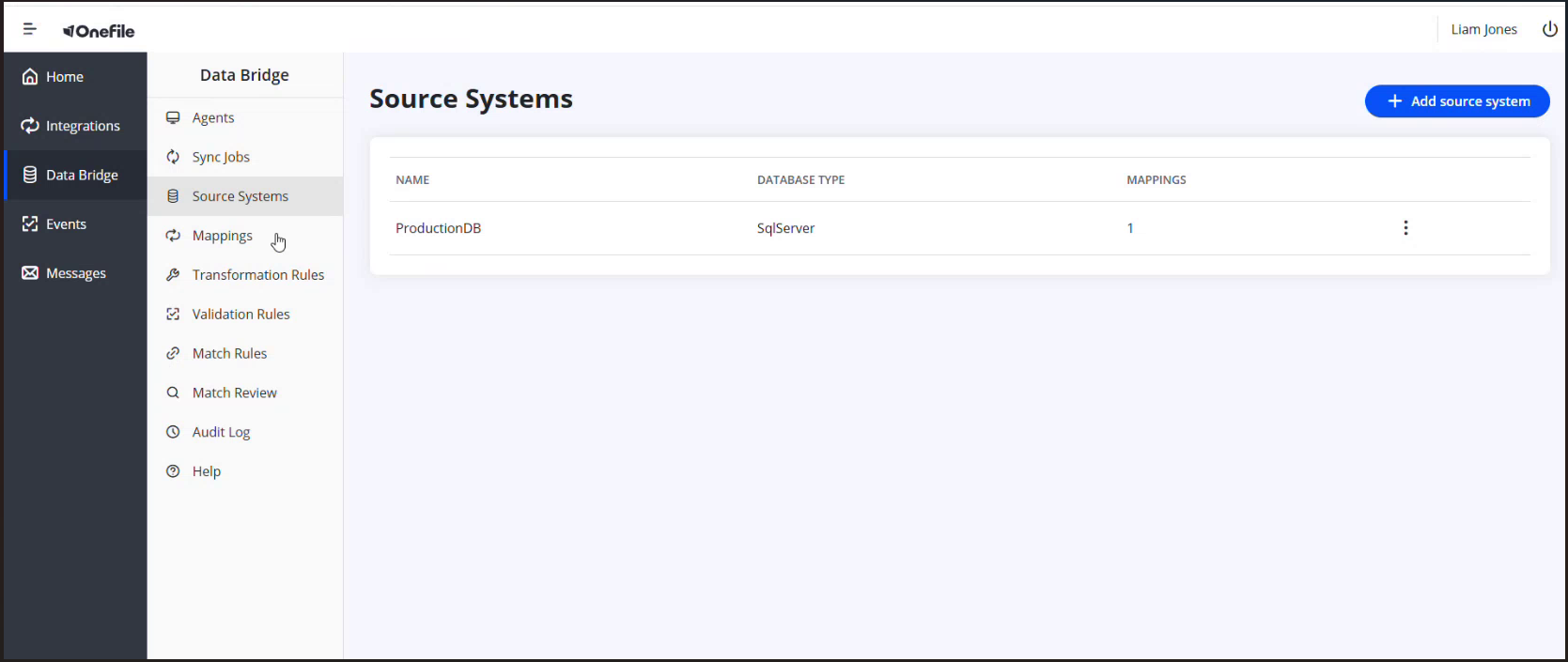
What the List Shows
| Column | Description |
|---|---|
| Name | The name you gave the source system. |
| Database Type | The type of database it connects to (for example, SqlServer). |
| Mappings | How many field mappings use this source system. |
Tips & Notes
- The database connection string is entered on the agent at a hidden prompt and stored encrypted on your machine — it is never held in the portal.
- Once a source system exists, you can create one or more mappings against it.
Terminology
The terminology used in this article may differ depending on your Centre's configuration.
Related Articles
- What Is Data Bridge in Onefile?
- Creating a Field Mapping in Data Bridge
- Registering and Running the Data Bridge Agent
Need Help?
If you need assistance, please contact Onefile Support or your internal support team.