
✨ New feature alert
This feature is available from Wednesday 14 October 2026.
Overview
Assessors can now schedule a Scorecard for a learner's Employer, as well as for the learner. This makes it easier to gather the Employer's view of a learner's progress at the right time, without needing to arrange it separately.
When you schedule a Scorecard for an Employer, you set a due date and can add an optional comment. The Scorecard then appears as a pending task for the Employer to complete.
What's Changed?
| Before | Now |
|---|---|
| Scorecards could only be scheduled for the learner. | Scorecards can be scheduled for the learner or an Employer contact. |
| No option to choose who receives the Scorecard. | You choose the recipient in Schedule Scorecard, based on the roles switched on for the learning aim. |
User Roles
This feature can be used by:
- Assessor (to schedule the Scorecard)
Scheduled Scorecards are received by:
- Employers (as a pending task)
Who You Can Schedule For
The options available in Schedule Scorecard depend on the Scorecard Roles setting for the learner's learning aim.
| Scorecard Roles setting | What happens in Schedule Scorecard |
|---|---|
| Learner and Employer both switched on | You choose whether to schedule for the Learner or an Employer. |
| Only Learner switched on | The Learner is used automatically. |
| Only Employer switched on | The Employer is used automatically. |
Steps to Schedule a Scorecard for an Employer
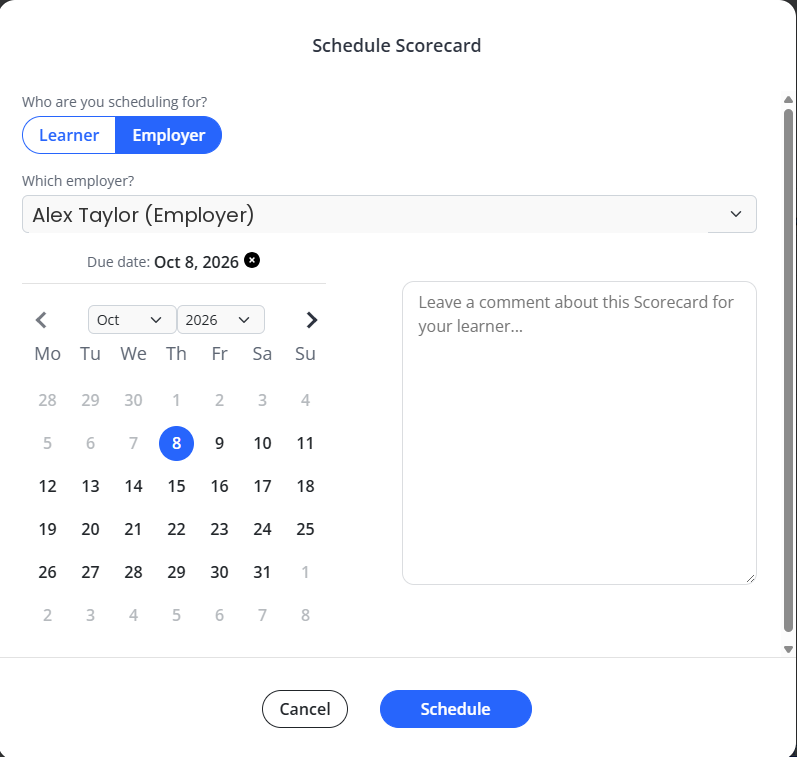
- Go to the learner you want to schedule a Scorecard for and open Schedule Scorecard.
- Choose Employer as the role you are scheduling for. If Employer is the only role switched on for the learning aim, it is selected automatically.
- If the learner has more than one Employer contact, select the contact you want to send the Scorecard to. If there is only one Employer contact, they are selected for you.
- Set a due date for the Scorecard.
- Add a comment if you would like to give the Employer any context or instructions. This is optional.
- Confirm to schedule the Scorecard. It will now appear as a pending task for the selected Employer.
⚠️ Important: Each learner can only have one pending Employer Scorecard at a time. You will need to wait for the current one to be completed before scheduling another for that learner's Employer.
Tips & Notes
- You cannot schedule a Scorecard for an Employer if the learner has no Employer contact on record. Add an Employer contact to the learner first.
- If the Employer option is not available, check that Employer is switched on in the Scorecard Roles setting for the learner's learning aim.
- Use the optional comment to explain what you would like the Employer to focus on, which can help you get more useful feedback.
- Choose a realistic due date that gives the Employer enough time to complete the Scorecard alongside their other commitments.
- Scheduling a Scorecard for a learner works in the same way as before — simply choose Learner as the role.
Terminology
The terminology used in this article may differ depending on your Centre's configuration.
Related Articles
- How to Schedule a Scorecard for a Learner
- Managing Scorecard Roles for a Learning Aim
- Completing a Scorecard as an Employer
Need Help?
If you need assistance, please contact Onefile Support or your internal support team.