
✨ Updated feature alert
This feature update is available from Wednesday 28 October 2026.
Overview
Scorecards let a Learner, Assessor, and Employer each record their own view of a learner's progress against an apprenticeship standard. Centre Managers control two things per learning aim from the Edit Learning Aim dialog:
- Which of these roles can populate a Scorecard
- The rating scale used for scoring.
This article covers both
What's Changed?
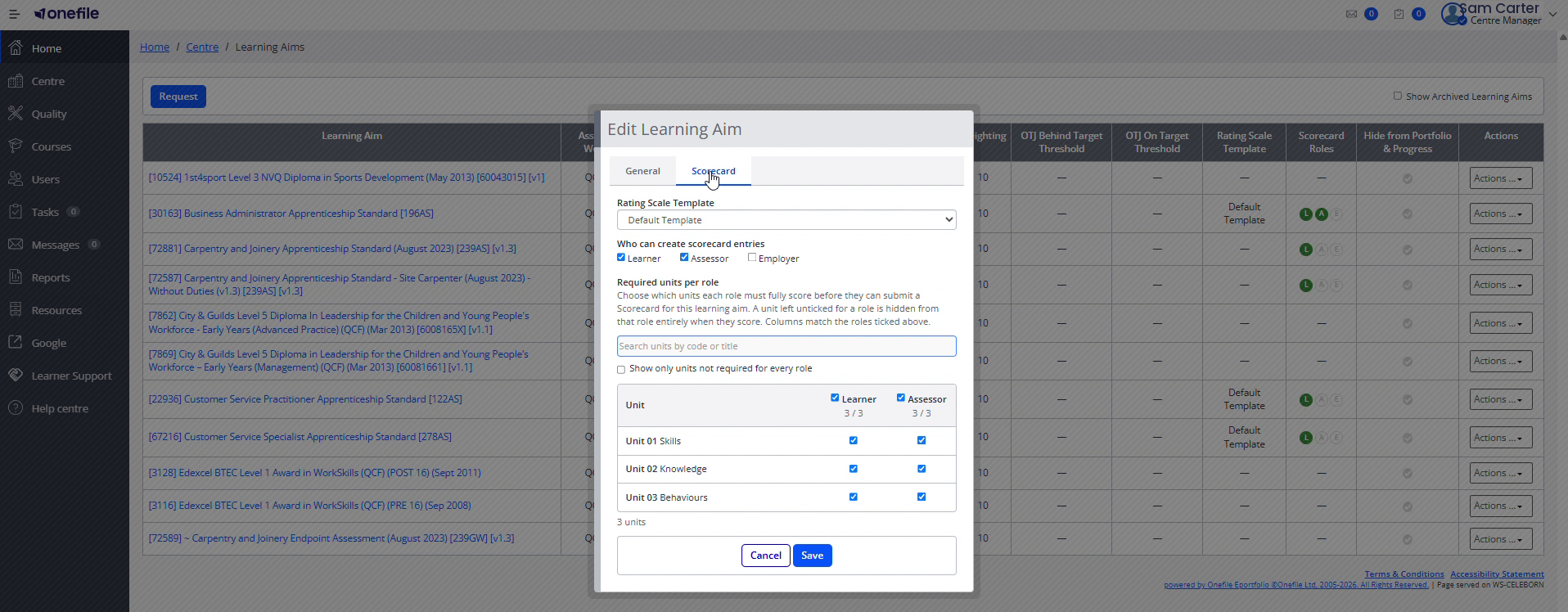
The Edit Learning Aim dialog now has two tabs — General and Scorecard — with all the Scorecard settings grouped under the Scorecard tab. A new Required units per role table lets you choose which units each role must score before submitting a Scorecard; previously every role had to score every unit.
User Roles
This feature can be used by:
- Centre Manager
Choosing Which Units Each Role Must Score
On the Scorecard tab, the Required units per role table lists every unit in the learning aim, with a column for each role that can create Scorecard entries.
- Tick a unit for a role to make it required for that role. For example, an Assessor could be required to score every unit, and an Employer only the Behaviours units.
- Search units by code or title, tick or untick all units for a role at once, and use Show only units not required for every role to see where roles differ.
- Each role only sees the units required for them — units not required for a role are hidden from that role's Scorecard.
- A Scorecard can't be submitted until every criterion in each of the submitter's required units has a score; if any are missing, you'll see which units are incomplete. This applies to drafts as well as new Scorecards.
⚠️ Important: On existing learning aims, all units are ticked for every role, so nothing changes until a Centre Manager unticks units.
Before You Start
- Scorecards are only supported on apprenticeship standards or similar. Learning aims that do not support Scorecards show a dash in the Scorecard Roles column and cannot be configured.
Steps to Configure a Learning Aim
- Go to Centre › Learning Aims.
- Find the apprenticeship standard you want to configure. The Scorecard Roles column shows L / A / E badges — solid for roles that are currently permitted, and faded for roles that are not.
- Open the learning aim's Edit dialog.
- In the Scorecard section, choose a Rating Scale Template from the dropdown list. This determines the scoring options everyone sees for the aim.
- Tick which roles may populate a Scorecard for this aim. You can tick more than one: Learner, Assessor, and Employer.
- Click Save. The grid's Scorecard Roles column updates immediately to show the new badges.
Roles You Can Enable
| Role | Default | Notes |
|---|---|---|
| Learner | Ticked by default | Allows the learner to complete their own Scorecard. |
| Assessor | Off until enabled | Enabling Assessor also covers Trainee Assessors and Assessor Managers automatically — there is no separate toggle for them. |
| Employer | Off until enabled | Allows the employer to score a Scorecard for the learner. |
⚠️ Important: If you are unable to set a rating scale for a learning aim, please contact standards@onefile.co.uk for assistance.
Tips & Notes
- Settings apply to the individual learning aim you are editing, so repeat the steps for each aim you want to configure.
- Review your rating scales regularly to make sure they continue to align with your organisation's expectations and quality strategy.
Terminology
The terminology used in this article may differ depending on your Centre's configuration.
Related Articles
- Scoring and Scheduling a Scorecard as an Assessor in Onefile Eportfolio
- Scoring a Scorecard as an Employer in Onefile Eportfolio
- How to Create a New Scorecard
Need Help?
If you need assistance, please contact Onefile Support or your internal support team.