
✨ New feature alert
Agreement Identifier support is available for learners with Start Dates on or after 1 August 2026.
Overview
The Agreement Identifier field has been reintroduced to the ILR Specification for the 2026/27 collection year. This allows Employers to be linked more easily between ILR data and the Apprenticeship Service.
Tracker now supports central management of Agreement Identifiers through Employer records. When configured, the Agreement Identifier can be automatically populated into new learner Employment Status records, reducing manual data entry and improving consistency.
Why Agreement Identifiers Matter
Agreement Identifiers are used to match Employer information contained within your ILR return to the corresponding Employer record held within the Apprenticeship Service.
Important: The Agreement Identifier is not the Employer Account ID.
Validating Your Data
It is unlikely that the Funding Information Service (FIS) will provide sufficient validation of Agreement Identifier data because validation requires comparison against information held within the Apprenticeship Service.
We strongly recommend validating your ILR returns using the Submit Learner Data portal wherever possible.
Managing Agreement Identifiers in Employer Records
Single Organisation and Branch Office Employer records now include a new Agreement Identifier field.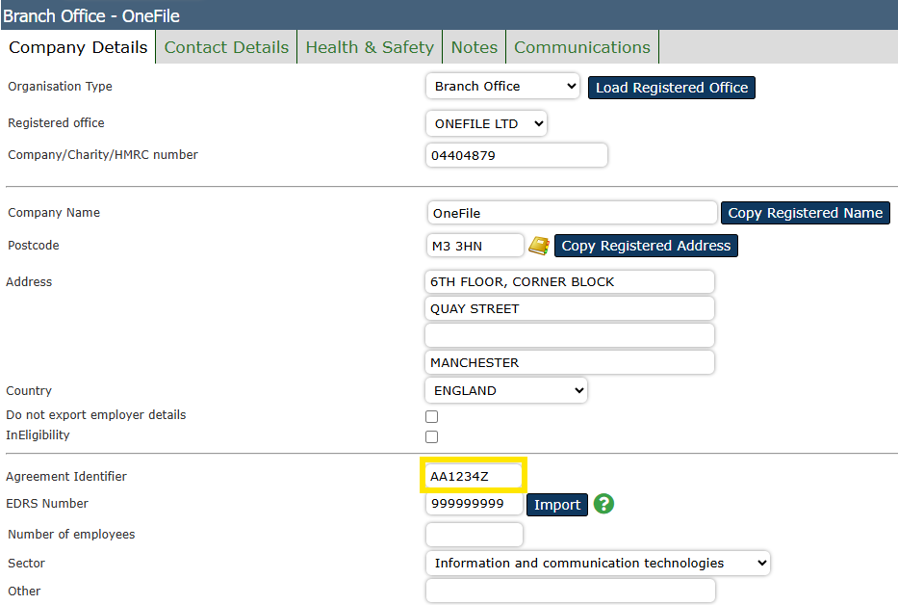
The Agreement Identifier can be located within the Apprenticeship Service under:
- View Employers and Manage Permissions
Once saved against the Employer record, Tracker will automatically populate the Agreement Identifier into new learner Employment Status records linked to that Employer.
Updating Existing Learner Records
If Employment Status records were created before the Agreement Identifier was added to the Employer record, the Agreement Identifier field may be blank.
To update these records:
- Open the Employer record.
- Locate the Agreement Identifier field.
- Click Update Learners.
- Review the confirmation message.
- Click Update Learners to continue.

Tracker will populate the Agreement Identifier against all active learner Employment Status records linked to the Employer where no Agreement Identifier currently exists.
Available from: Tuesday, 28 July 2026.
Updating Employer Records from Learner Records
Tracker can also help populate missing Agreement Identifiers in Employer records.
If:
- An Employment Status record contains an Agreement Identifier; and
- The linked Employer record does not already contain one;
Tracker can automatically update the Employer record using the learner's value.
Important: Existing Employer Agreement Identifiers will never be overwritten.
This functionality:
- Is available from Tuesday, 28 July 2026.
- Is disabled by default.
- Can be enabled from Project Admin → Project Details.
Future Changes
As Centres establish Agreement Identifier processes, Onefile will continue to review customer feedback, validation requirements, and system usage.
This may result in future enhancements, additional safeguards, or validation checks where appropriate.
Reporting on Missing Agreement Identifiers
To help identify missing data:
- The Employer Details dataset in Report Creator now includes the Agreement Identifier field.
- A shared report called Employers without Agreement Identifier is available to all users.
This enables Centres to identify Employer records that still require Agreement Identifiers.
Available from: Tuesday, 28 July 2026.
Tips & Notes
- Agreement Identifiers should be managed primarily through Employer records.
- Always verify the Agreement Identifier against the Apprenticeship Service before saving.
- Use the shared report regularly to identify missing data before ILR submission.
- Validate ILR files using Submit Learner Data wherever possible.
Terminology
The terminology used in this article may differ depending on your Centre’s configuration.
Related Articles
Need Help?
If you need assistance, please contact Onefile Support or your internal support team.