
Overview
You can remove a user's account from a Keychain when they no longer need access, or when an account has ended up on the wrong Keychain and needs to start again. Unlinking removes the account's Keychain entirely, so the user can't sign in until they're re-invited.
⚠️ Important: If you only need to correct a mistyped sign-in email, use Change Keychain email address instead of unlinking — it fixes the address without the user having to rebuild their Keychain. Unlinking is for removing access, or for cases where a user has lost access to the mailbox they sign in with.
User Roles
This feature can be used by:
- Centre Manager
Steps to Remove an Account from a Keychain
- Click Users on the left-hand navigation bar.
- Use the search bar to find the user whose account you want to unlink.
- Open the user's profile and go to Account.
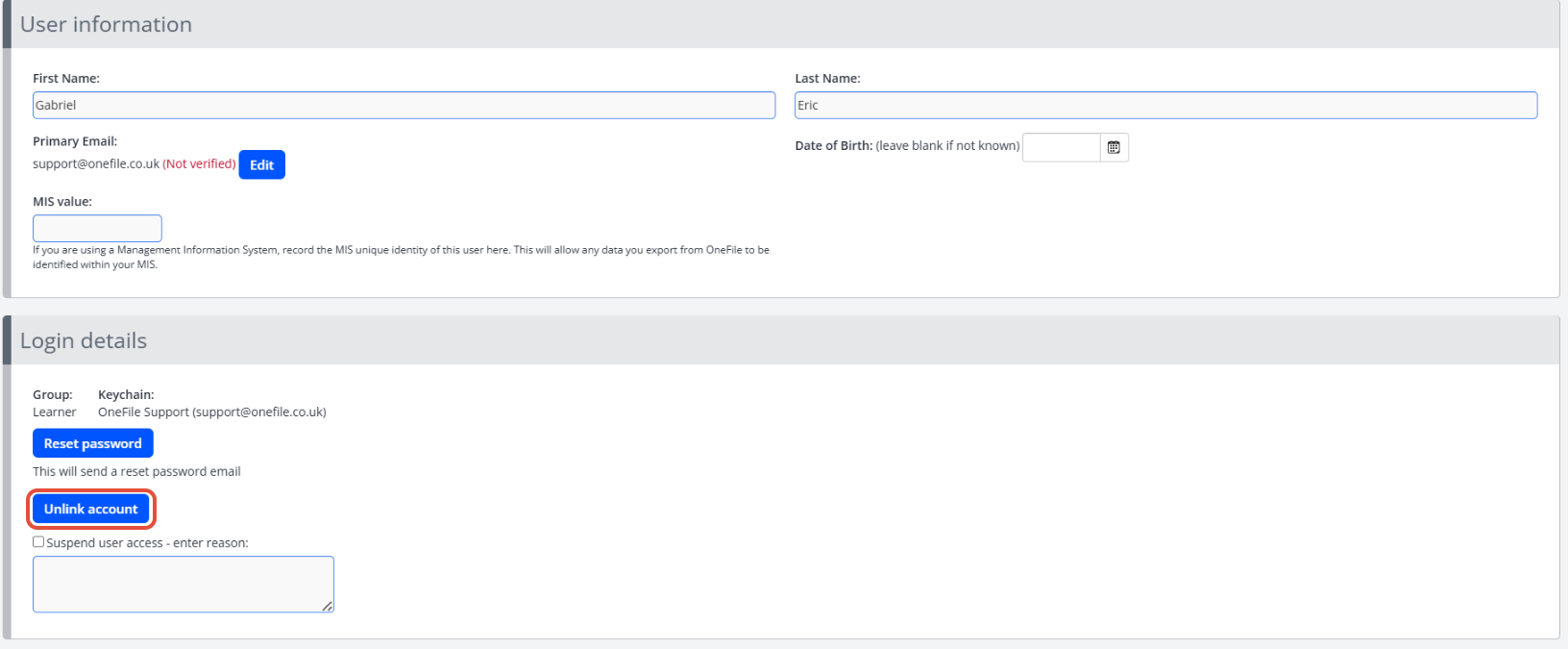
- Click Unlink Account to remove the account from the Keychain.
Tips & Notes
- Always double-check you have the right user before unlinking, to avoid disrupting access across Centres.
- After unlinking, the account has no Keychain — re-invite it to a working email address so the user can sign in again.
Terminology
The terminology used in this article may differ depending on your Centre's configuration.
Related Articles
- Change Keychain email address
- How do I remove an account from my Keychain? (user self-service)
- What is a Keychain?
Need Help?
If you need assistance, please contact Onefile Support or your internal support team.