
✨ Updated feature alert
This feature update is available from Thursday 26th November 2026.
Overview
If a user's sign-in email was mistyped, missing and hasn't been confirm, you can now correct it from their account page — without unlinking the account and re-sending credentials. The Keychain is the email a user signs in with, and it's separate from their contact (Primary) email, which is why fixing the Primary email alone didn't change how they signed in.
User Roles
This feature can be used by Centre staff with edit access:
- Centre Manager
- Assessor (for their own learners)
Steps to Change a Keychain Email Address
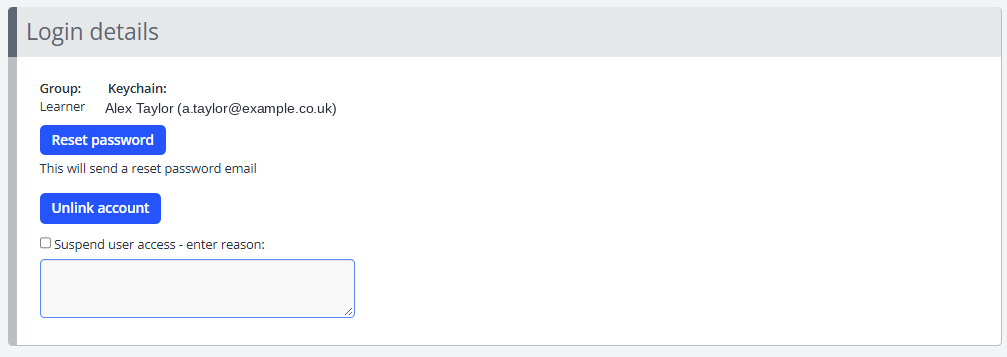
- Open the user's account and go to Login details. Select Change Keychain email address. (The button only appears while the user hasn't yet accepted their invite — see "When you can't change it" below.)
- Type the correct address twice. Leave Set as primary email address ticked to keep their contact and sign-in addresses in step.
- Read the confirmation message, then select Confirm. It tells you what the address you typed already is, and what will happen (see "What the confirmation tells you").
- Check the closing message — it confirms whether a fresh invite was sent. Invites are valid for seven days.
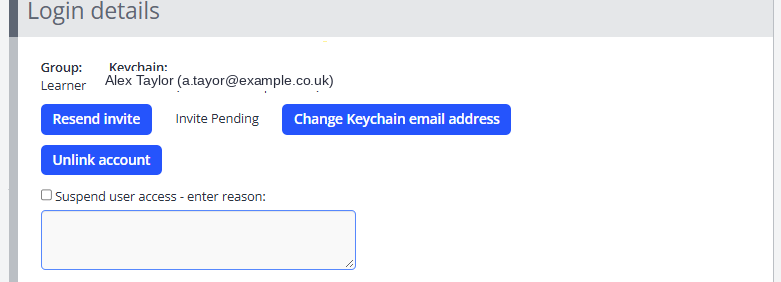
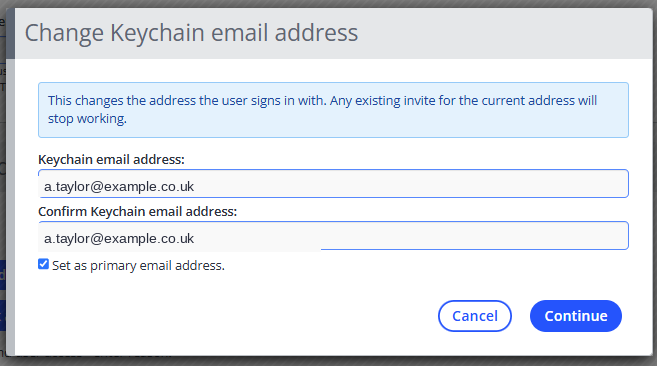
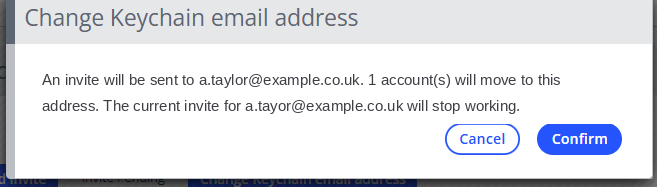
⚠️ Important — read the confirmation before you confirm, especially if it names a person. If the address you typed already belongs to someone's live Keychain, the confirmation names that holder and the account is added to their identity as soon as they next sign in — no invite, no approval. The named holder is your only check that the address is right: if it isn't the person you expect, select Cancel.
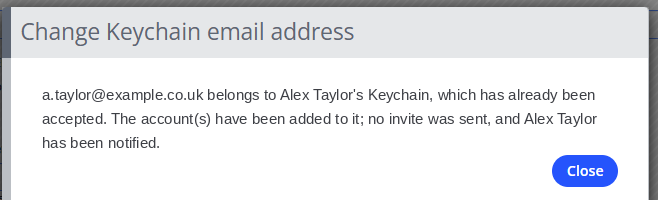
What the Confirmation Tells You
The address may already be known to Keychain, which you can't see from the account page — so the confirmation spells it out:
| If the address is… | What happens |
|---|---|
| Not in use (the usual case) | A new Keychain is created and an invite is sent. The old invite is cancelled. |
| Already invited, not yet accepted | The account joins that existing Keychain. No new invite is sent, as one is already outstanding. |
| A live, accepted Keychain | The account is added to that person's identity and they're notified. No invite is sent. Check the named holder is correct before confirming. |
When You Can't Change It
Once a user has accepted their invite, the address is read-only here — it's a live identity, so only they can change it, in their own Keychain settings once signed in (see Change the email address of a Keychain).
⚠️ Important: If a user has lost access to the mailbox they sign in with and can't sign in to change it, there's no fix from Eportfolio — unlink the account to remove its Keychain, then re-invite it to a working address.
Tips & Notes
- All of your Centre's accounts on that Keychain move together — if the person holds several (e.g. assessor and learner), all move. The confirmation tells you how many. Accounts at other Centres stay where they are and aren't affected.
- The Primary (contact) email moves too when you leave the checkbox ticked — the previous Primary stays in the list, unflagged; nothing is deleted. The new address becomes verified when the invite is accepted.
- This is different from the Email Preferences tab users see on their own Profile — that manages contact addresses only, not the sign-in address.
- If an invite has just expired, use Resend invite instead — only use this flow when the address itself is wrong.
Terminology
The terminology used in this article may differ depending on your Centre's configuration.
Related Articles
- Change the email address of a Keychain (user self-service)
- How do I remove an account from my Keychain?
- What is a Keychain?
Need Help?
If you need assistance, please contact Onefile Support or your internal support team.