
Once you're logged into your Keychain, follow these steps to add an account:
➕ Add a New Account
- Click on your name in the top-right corner of the screen
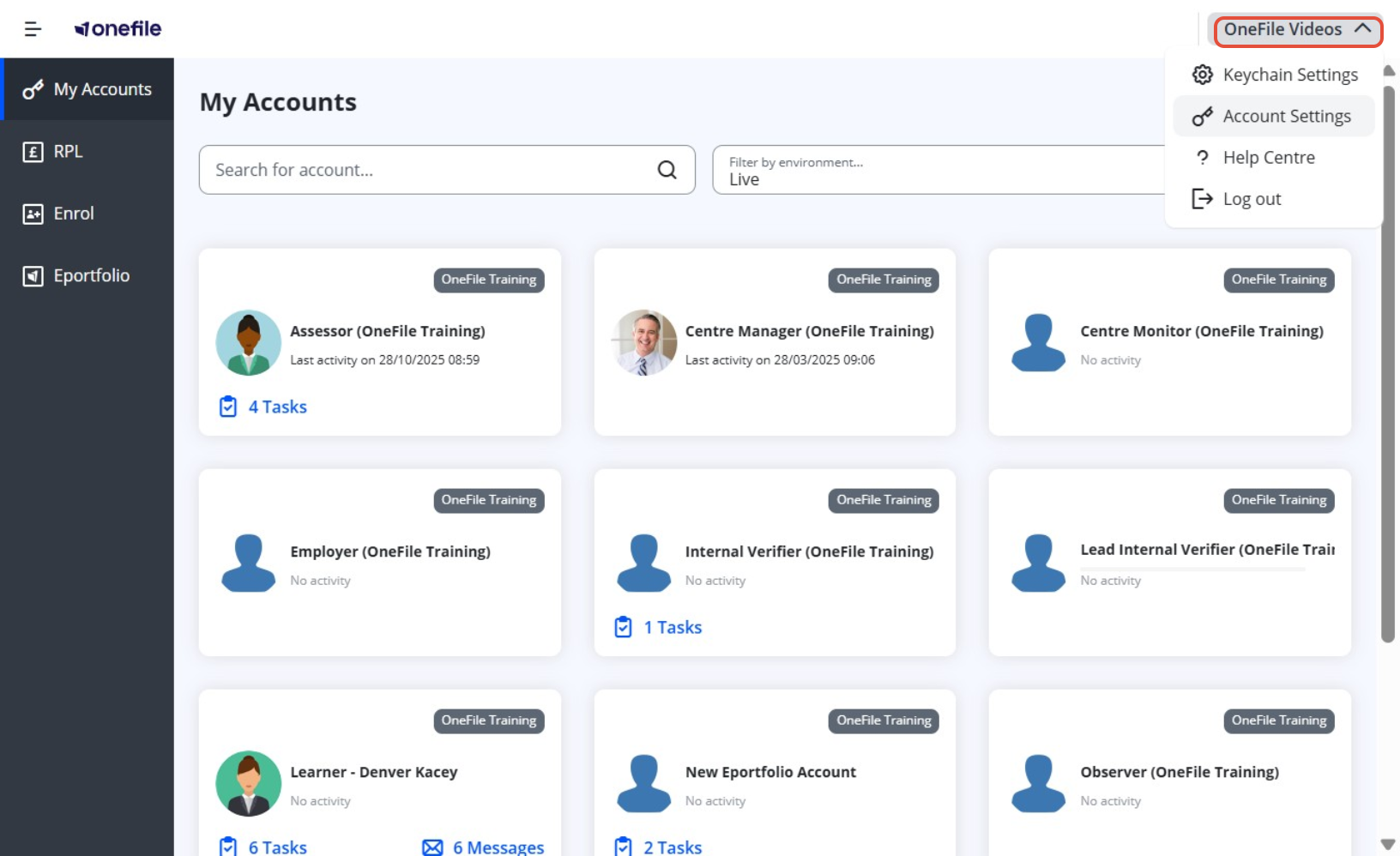
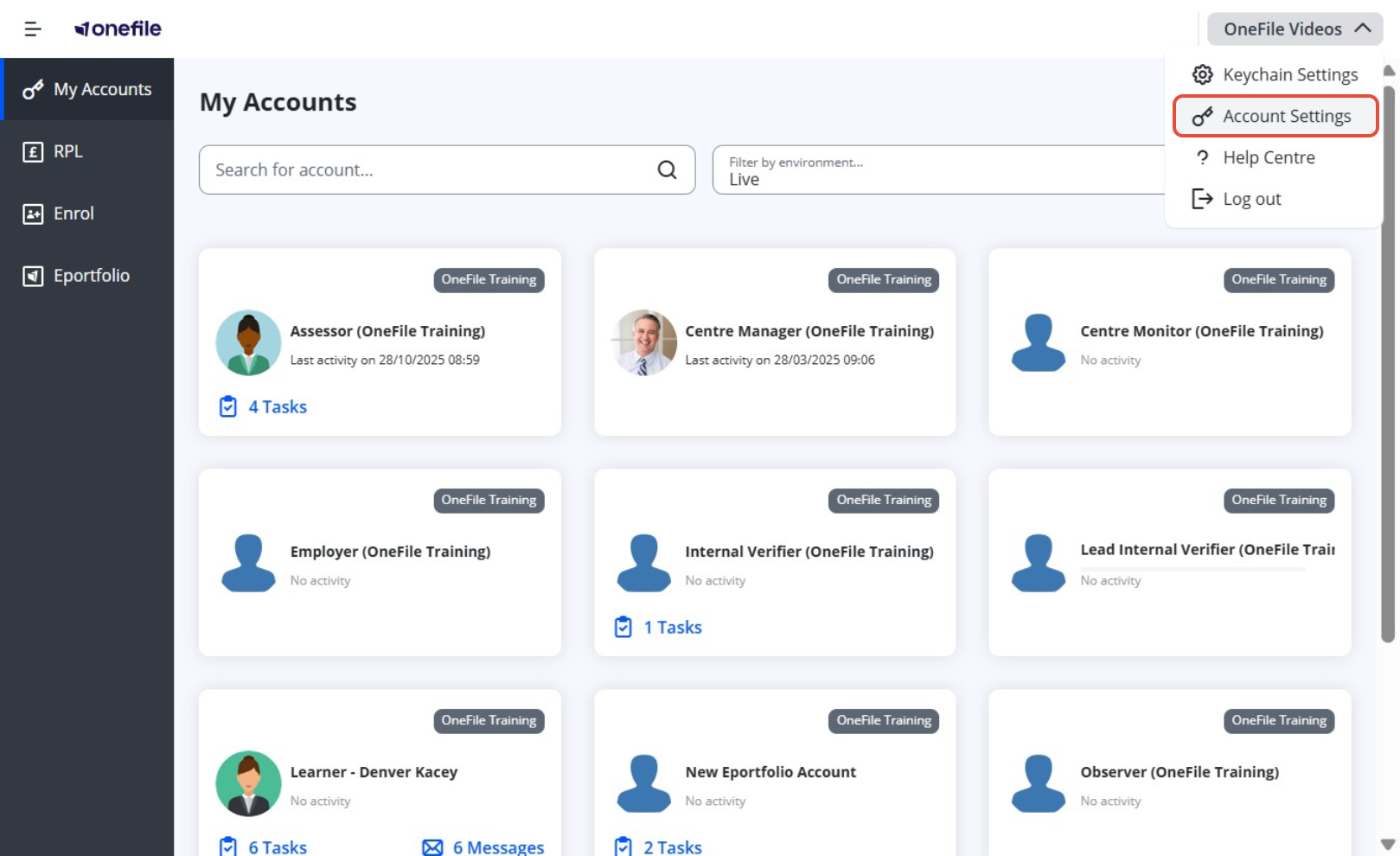
- Select Account Settings from the dropdown menu
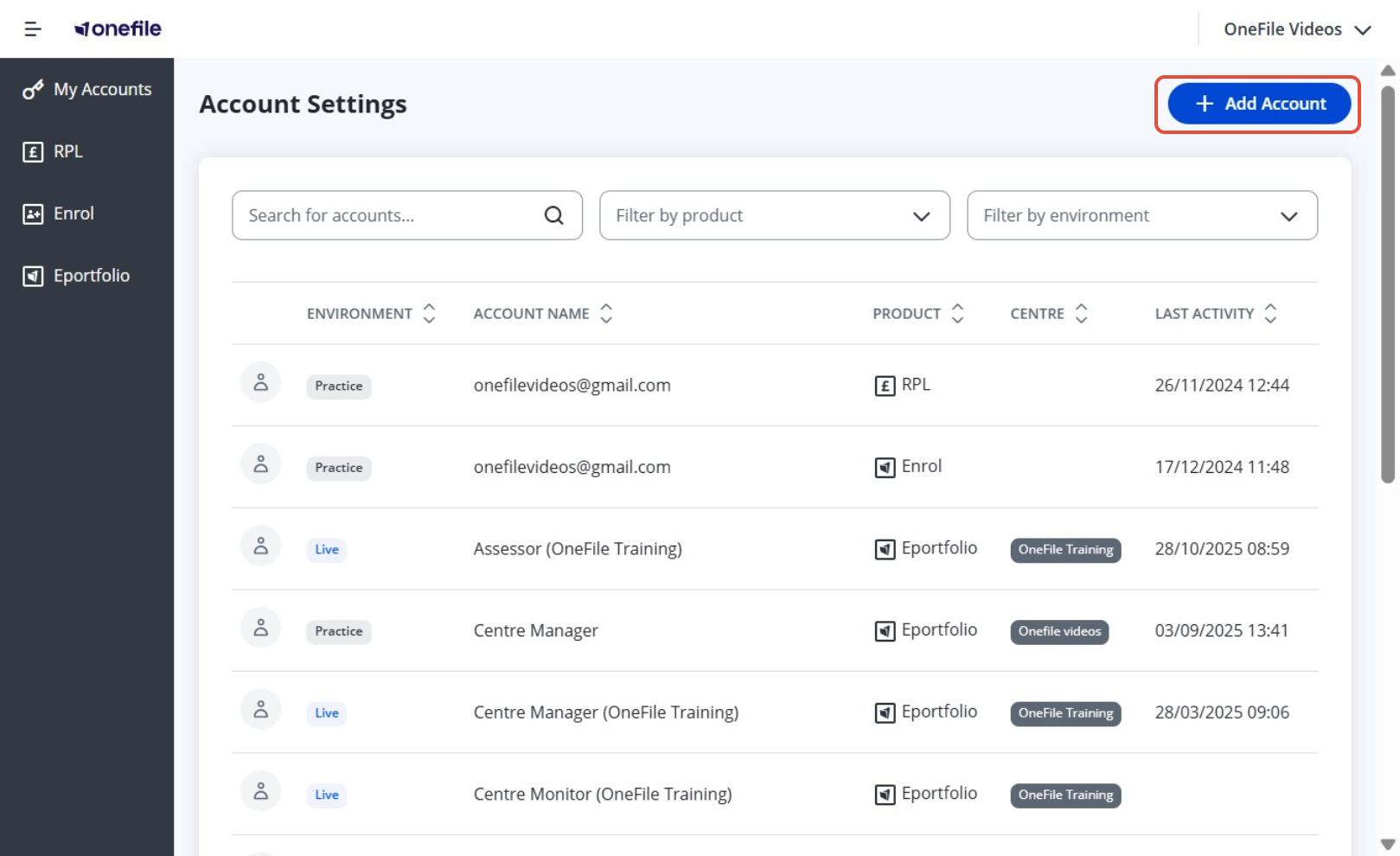
- Click Add Account
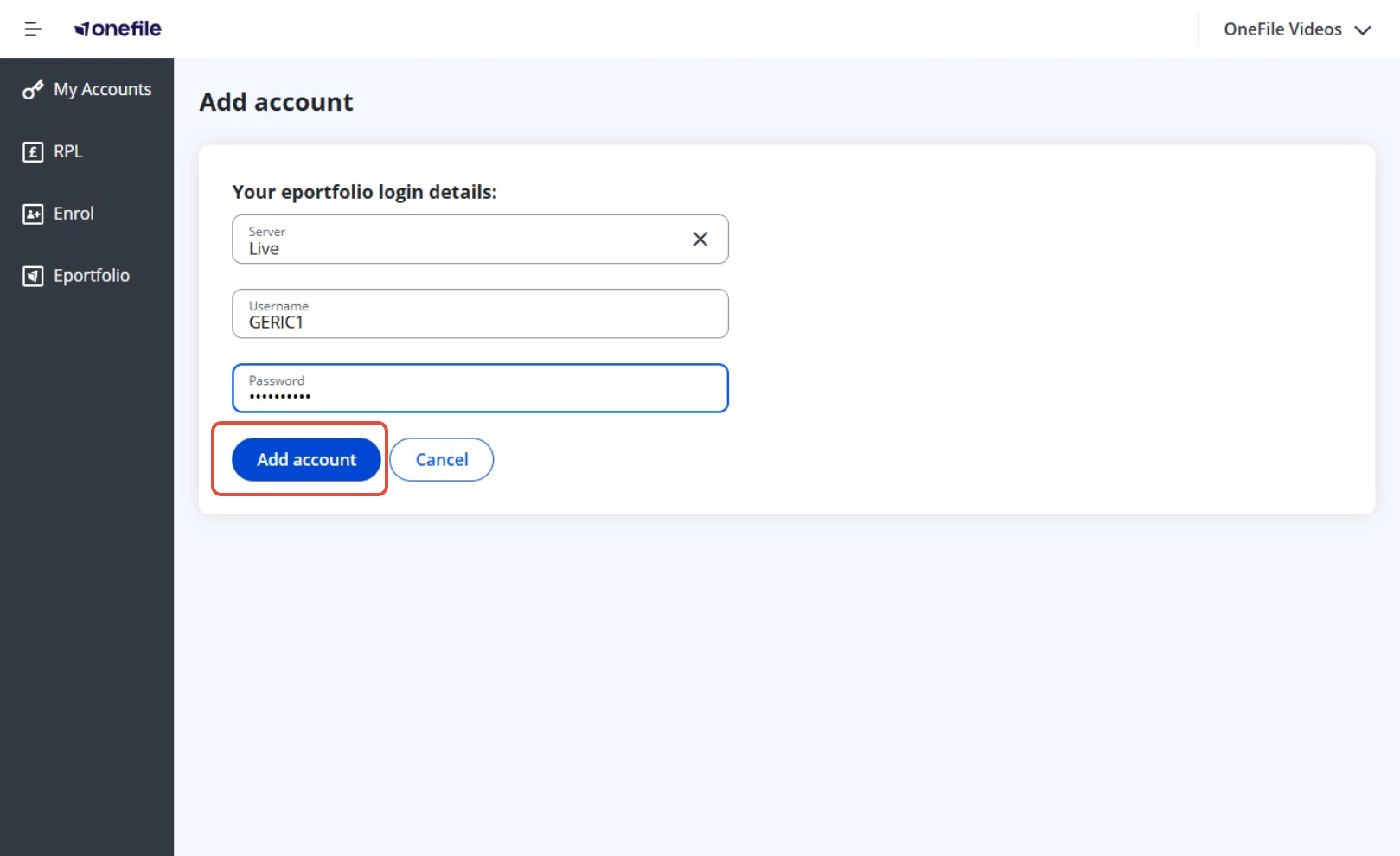
- Enter the Username of the account (e.g AEXAMPLE2) Tip: Your username is usually your first initial followed by your surname and a number. Your username is provided by your training organisation.
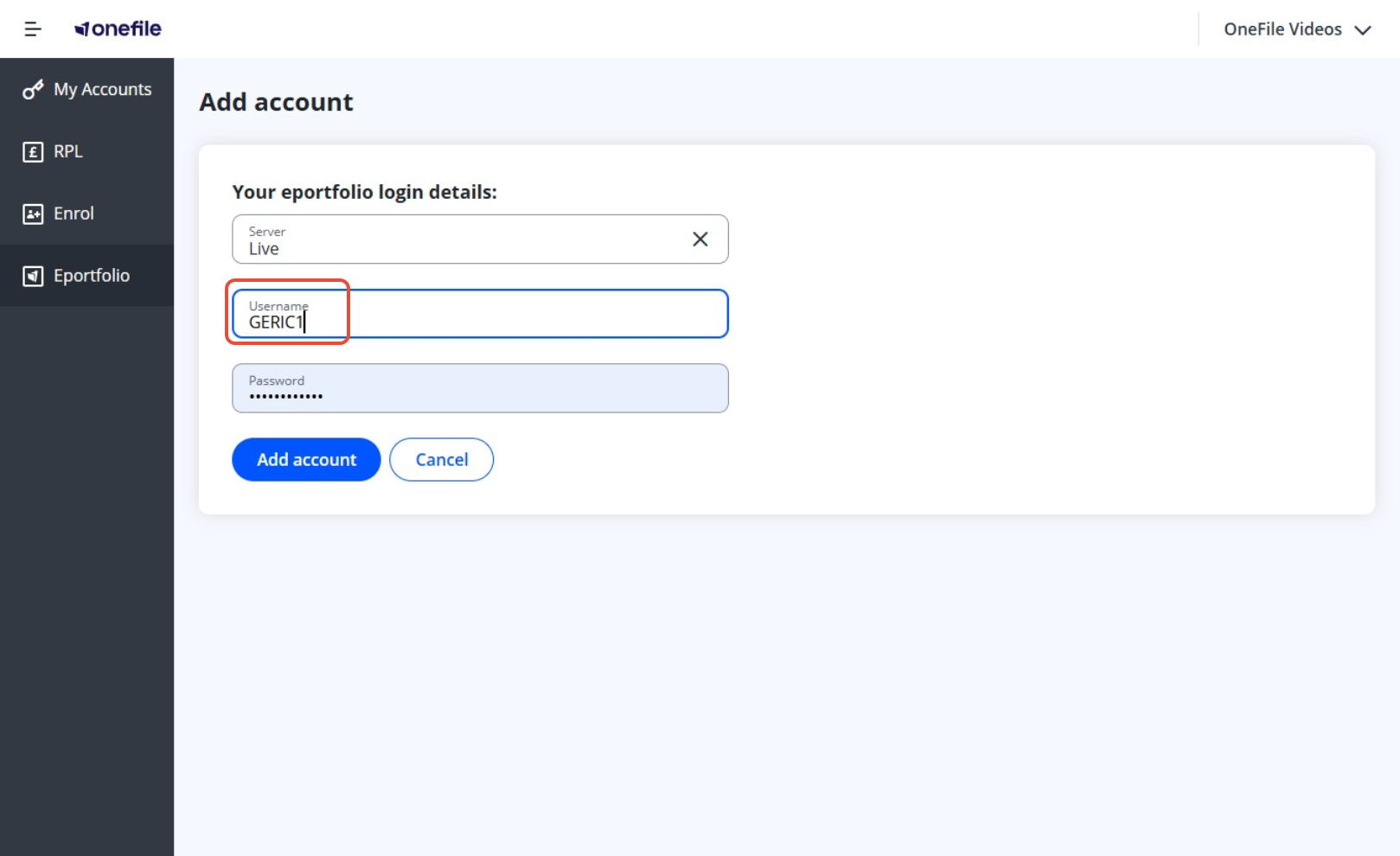
- Enter or paste the Password for the account
- Click Add Account
➕Adding Multiple Accounts
You can repeat these steps for each account you want to add, as long as you know the username and password.
If you’ve forgotten the login details for any account, you’ll need to reset your password before proceeding.
Terminology
Please note that the terminology used in this article may be different depending on your Centre.
❓Need Help?
If you encounter any issues or have questions, please contact Onefile Support or your internal support channels.