
Overview
Onefile supports Microsoft 365 (Azure AD) Single Sign-On (SSO), allowing users to authenticate using their Microsoft 365 credentials. All users access Onefile via a shared multi-tenant login page, where they can choose to sign in using:
- Email and Password
- Microsoft 365
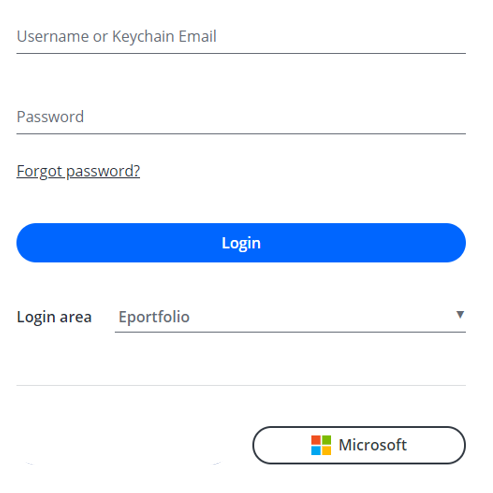
Because this is a shared login page for all organisations, Onefile does not know which organisation a user belongs to until after authentication begins.
How Microsoft 365 Login Works
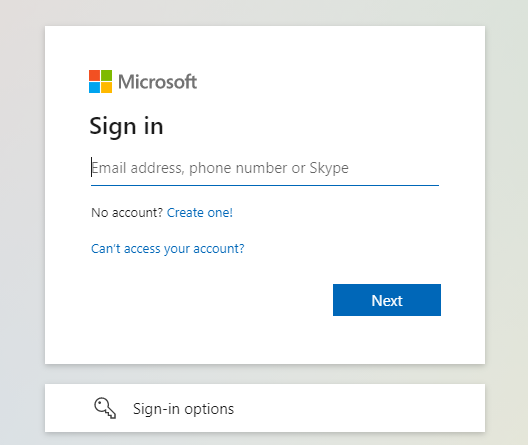
To use Microsoft 365 login, the user clicks the Microsoft button on the Onefile login page. This begins authentication with Microsoft’s generic multi‑tenant login page rather than a specific organisation’s branded login.
If the user is not signed into Microsoft 365
The user will be prompted to enter their Microsoft email and password on the standard Microsoft login screen.
If the user is already signed into Microsoft 365
After approving the Onefile Microsoft App (if required), the user is returned to Onefile and logged in automatically.
Microsoft / Onefile Consent
Depending on your organisation’s Azure AD settings, consent may be required before Onefile can authenticate a user. This may be:
- User-level consent (if allowed by your Azure AD policy)
- Admin-level consent (if your organisation restricts app permissions)
Relevant Microsoft guidance:
High-Level SSO Journey
- The user clicks Sign in with Microsoft on the Onefile login page.
- They are redirected to Microsoft 365.
- If not already logged in, they enter their Microsoft 365 credentials.
- The user or IT admin may need to approve the Onefile Microsoft App.
- The user is redirected back to Onefile and logged in.
Technical Details
For more information on Microsoft SSO, refer to Microsoft's official documentation:
https://docs.microsoft.com/en-us/azure/active-directory/manage-apps/what-is-single-sign-on
Tips & Notes
- The Microsoft 365 email address must match the email address used in the user’s Onefile Keychain.
- Users may need to clear cached sessions if switching between personal and work Microsoft accounts.
- Admins may need to pre‑approve the Onefile app in organisations with strict consent policies.
Terminology
The terminology used in this article may differ depending on your Centre’s configuration.
Related Articles
Need Help?
If you need assistance, please contact Onefile Support or your internal support team.