Reduced Support Availability – 19th January 2026

Just a quick heads-up! On 19th January 2026, our support and qualifications team will be attending a  Training and Development Meeting, so our response times may be a little slower than usual. 

But don’t worry — you can still find answers quickly by searching our Help Centre for guides and FAQs. If you need further assistance, feel free to submit a ticket. and we’ll get back to you as soon as we can.

If your issue is urgent, please make sure to set the priority accordingly when submitting your request.

Thanks for your understanding!

Upcoming System Update: Eportfolio

On Wednesday 21st January 2026, we’ll be rolling out a series of enhancements and fixes to Eportfolio.

Release Notes
Full details of the changes can be found here.  

⏱️ Scheduled Downtime
Please note that there will be a brief service interruption between 07:00 and 07:30 AM on the day of the update.

⚠️Action Required
To avoid any data loss, make sure you’re logged out and have saved all work before 07:00 AM.


Submit a ticket Log in

How to Add an Account to your Keychain

Once you're logged into your Keychain, follow these steps to add an account: 

➕ Add a New Account

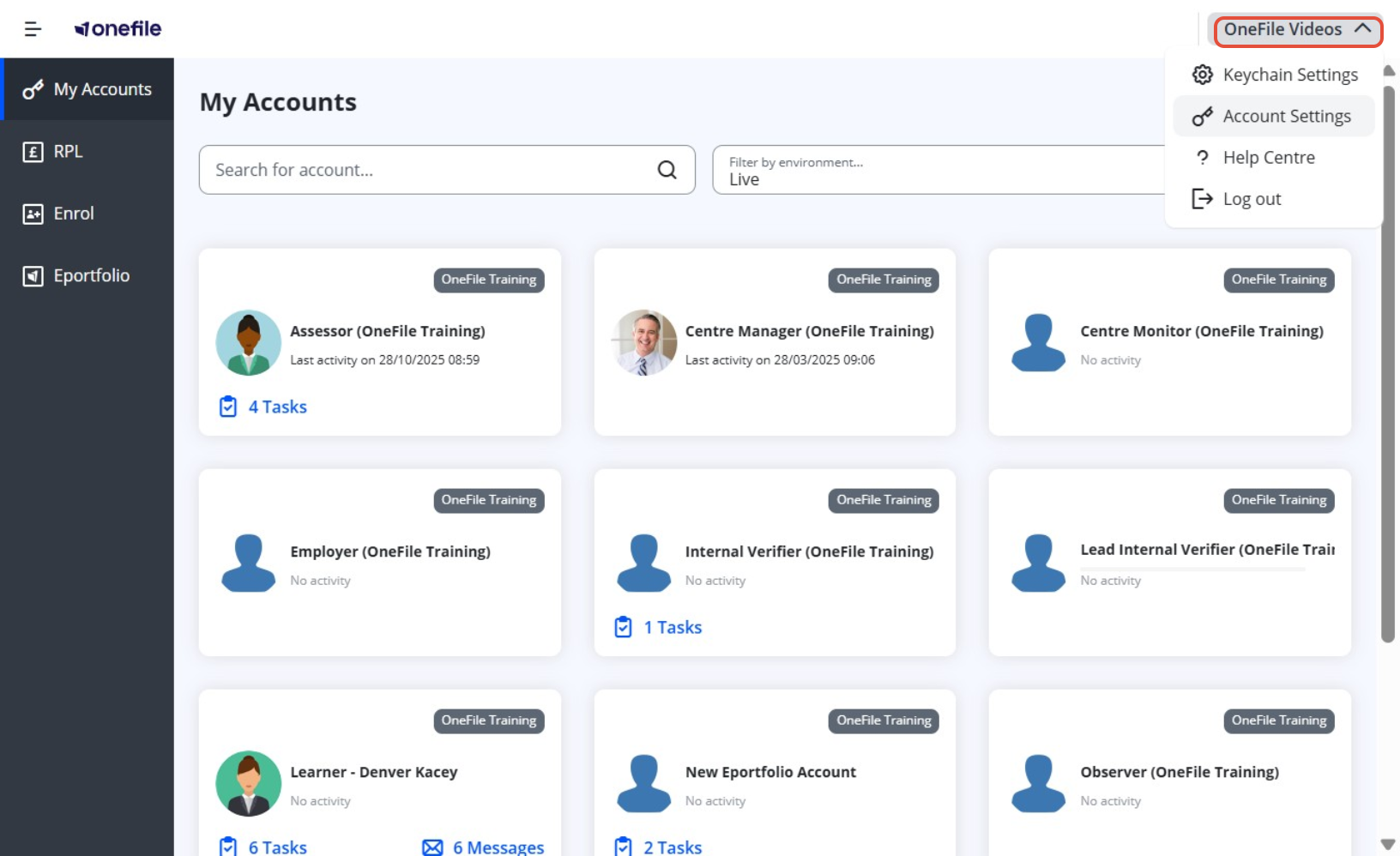
  1. Click on your name in the top-right corner of the screen
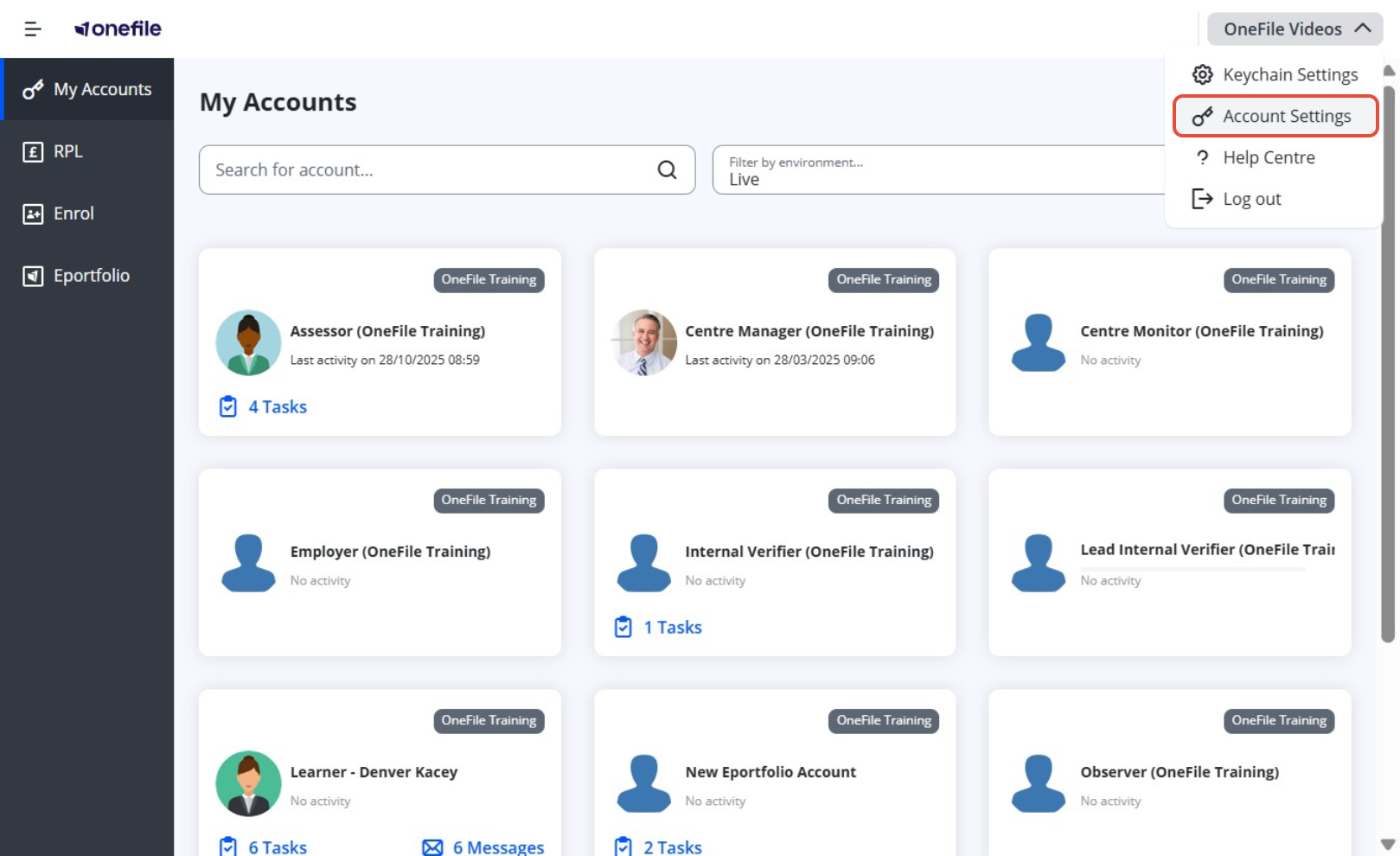
  2. Select Account Settings from the dropdown menu
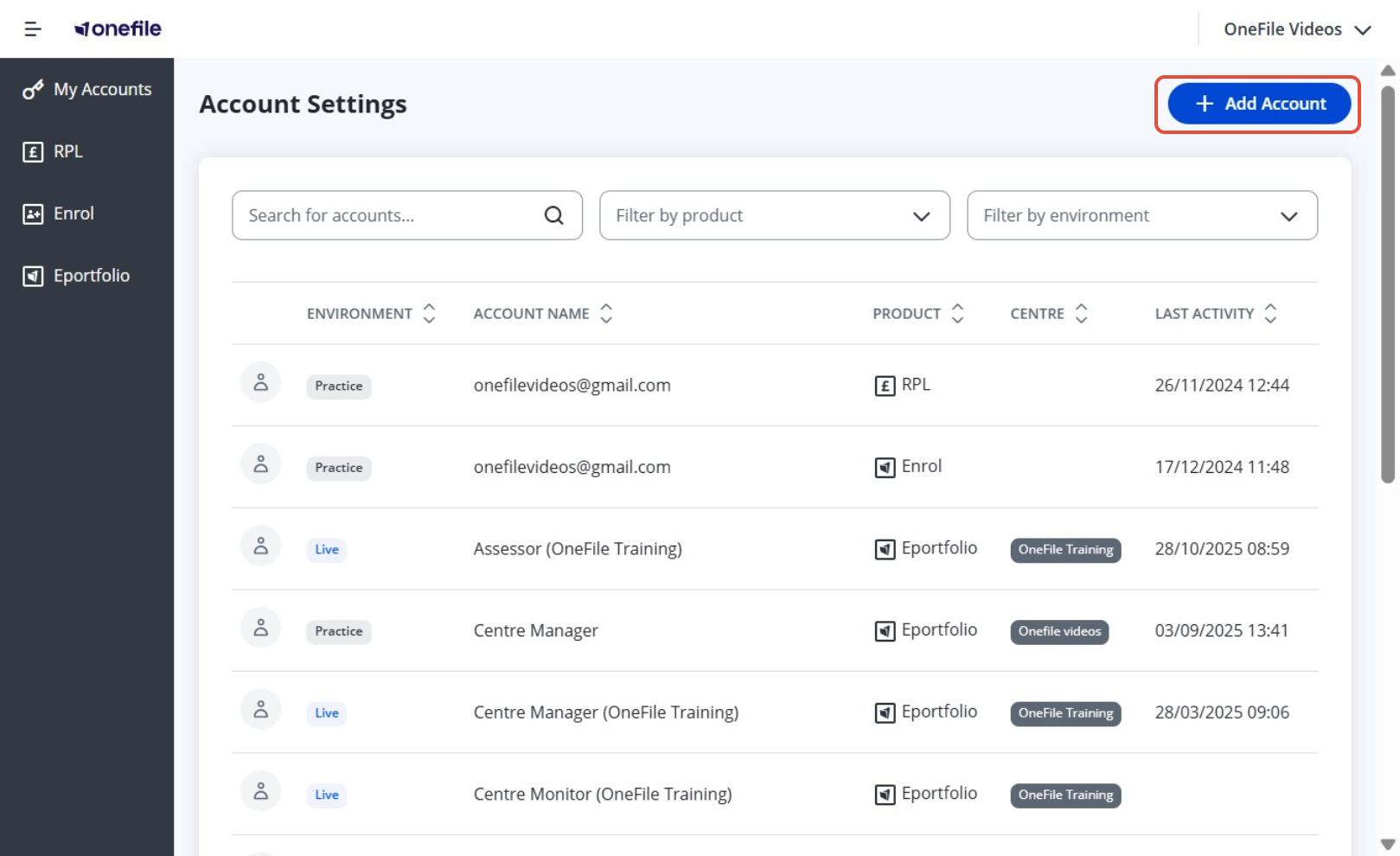
  3. Click Add Account
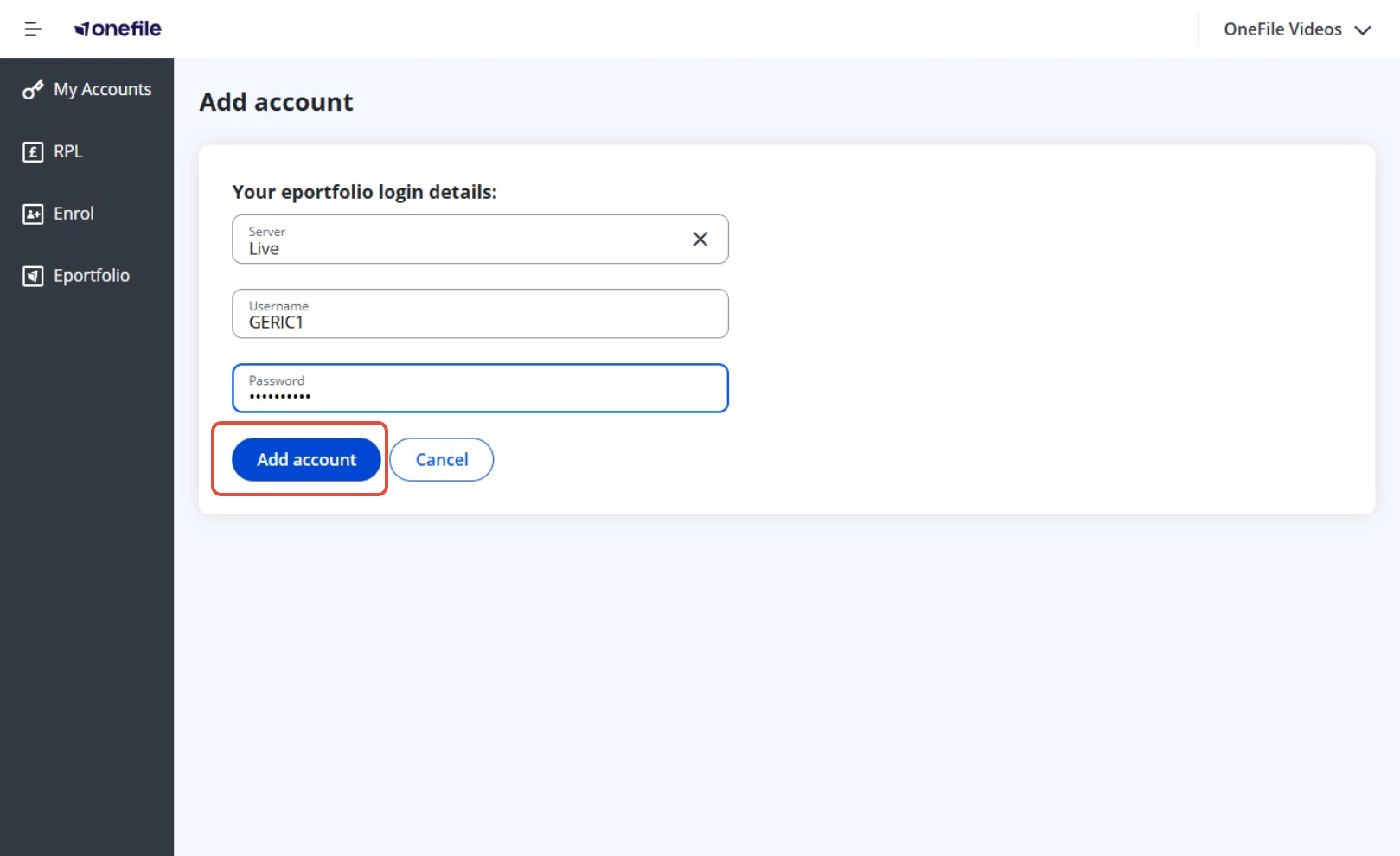
  4. Enter the Username of the account (e.g AEXAMPLE2) Tip: Your username is usually your first initial followed by your surname and a number. Your username is provided by your training organisation.
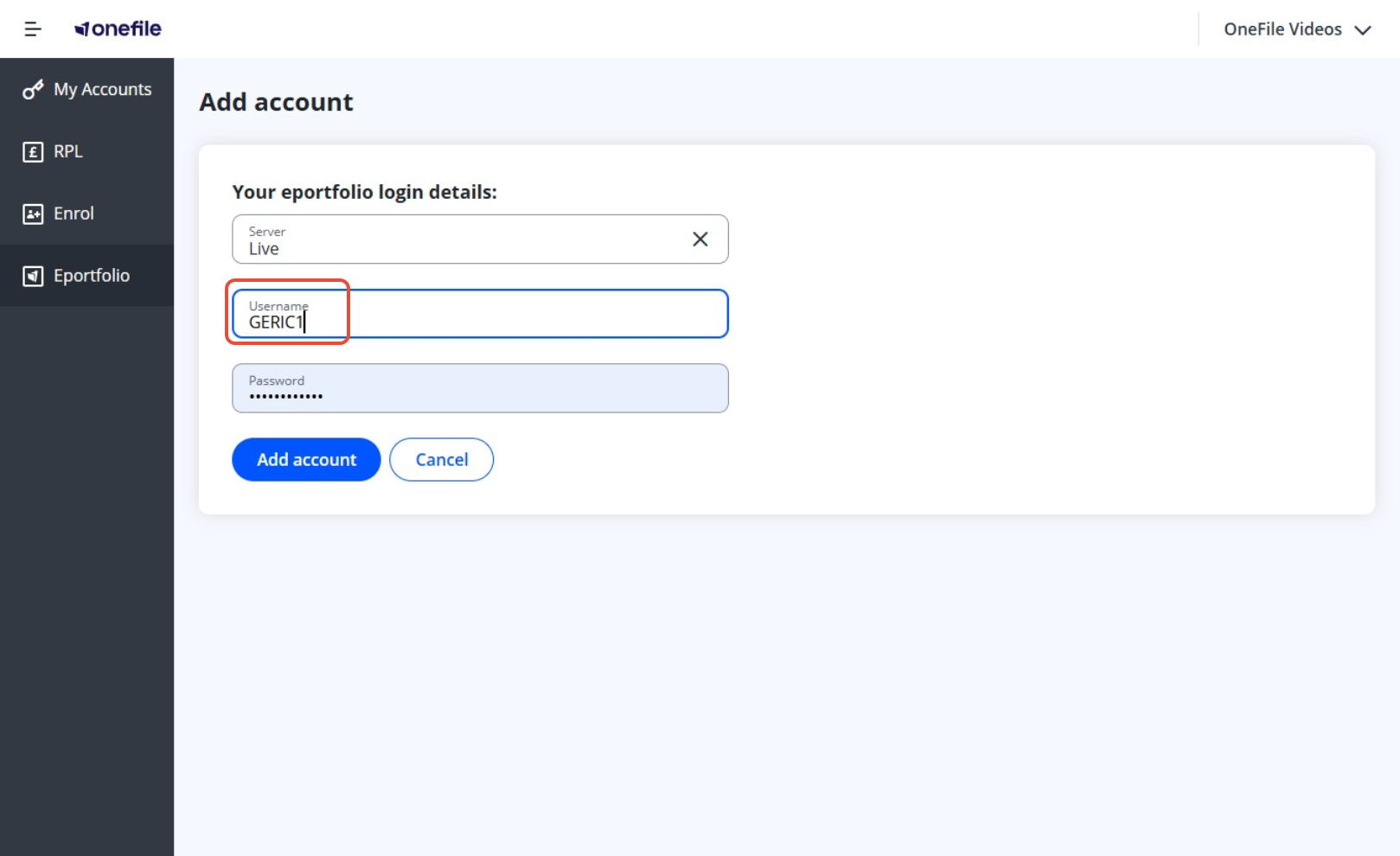
  5. Enter or paste the Password for the account
  6. Click Add Account

➕Adding Multiple Accounts

You can repeat these steps for each account you want to add, as long as you know the username and password.

If you’ve forgotten the login details for any account, you’ll need to reset your password before proceeding.

Terminology

Please note that the terminology used in this article may be different depending on your Centre.

Need Help?

If you encounter any issues or have questions, please contact Onefile Support or your internal support channels.

Did you find it helpful? Yes No

Send feedback
Sorry we couldn't be helpful. Help us improve this article with your feedback.