
Overview
Learner Statuses allow Centres to define and customise the status of a learner. These statuses appear on the learner’s portfolio and can also be used in reporting, reviews, assessment plans, and other areas of the system.
Permissions
Who Can Use This Feature?
This feature can be used by the following user roles:
- Centre Manager
- User Manager
Steps
Create a Learner Status
- Click Centre from the navigation menu.
- Click Look‑up Tables.
- Select Learner Statuses.
- Click Create Learner Status.
- Enter the Status Name.
- Select a Status Colour to visually identify the status.
- Tick the relevant checkboxes.
- Click Save.
You can now assign this status to learners via their Episode tab or during learner onboarding.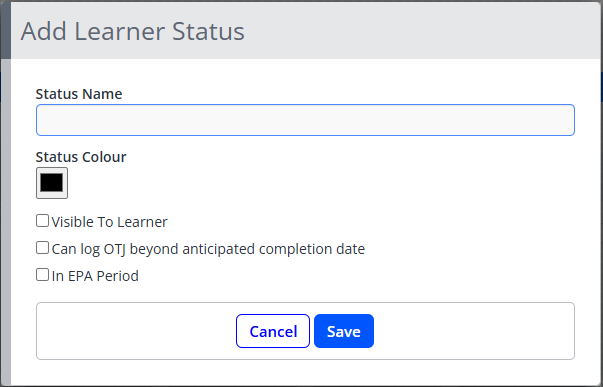
Tips & Notes
- Status colours help differentiate learner statuses at a glance.
- Statuses can be hidden from learners if the status is for internal use only.
- Learner Statuses can be edited or archived if no longer required.
Terminology
Please note that the terminology used in this article may differ depending on your Centre.
Related Articles
Need Help?
If you encounter any issues or have questions, please contact Onefile Support or your internal support channels.