
Overview
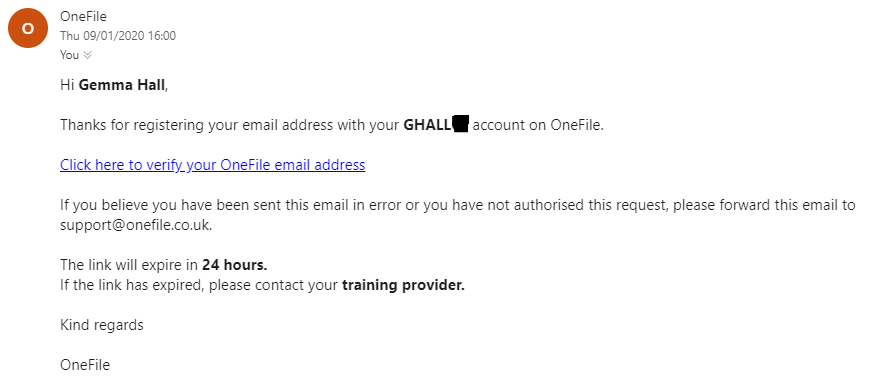
When you add a new email address to your Onefile profile, a verification email is sent to confirm ownership. Your email must be verified to ensure you receive important notifications and can use all application features.
The verification email is sent from:
- verification@onefile.co.uk
The email contains a link. Once clicked, your email address will be verified—provided the link has not expired.
Who Can Use This Feature?
All users with access to a Onefile Eportfolio account can verify their email address.
Step-by-Step Guide
Step 1: Open the Verification Email
- Check your inbox for an email from verification@onefile.co.uk.
- Click the verification link inside the email.
Step 2: Complete Verification
- If the link is valid, your email address will be verified automatically.
If the Verification Link Has Expired
If the link has expired, follow the steps below to resend the verification email:
Step 1: Open Your Profile
- Click your name in the top‑right corner of OneFile.
- Select Profile.
Step 2: Access Email Preferences
- Click Email Preferences.
Step 3: Resend the Verification Email
- Click Resend Email.
The Resend Email option will also appear automatically each time you log in until your email address is either verified or removed.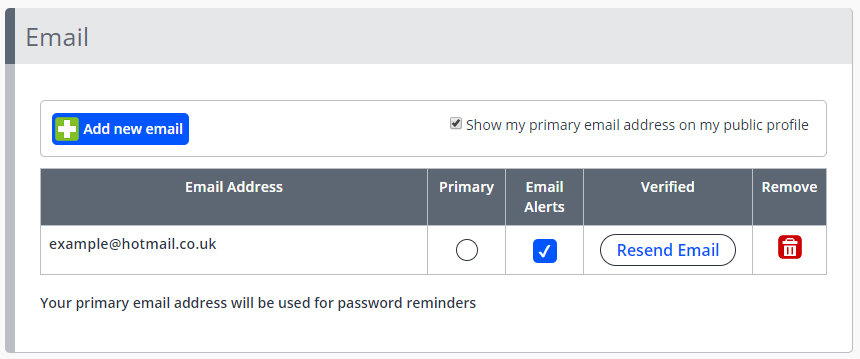
Terminology
Please note that the terminology used in this article may vary depending on your Centre.
❓Need Help?
If you encounter any issues or have questions, please contact OneFile Support or your internal support channels.