
✨New feature alert
This feature is available from Thursday 5th November 2026.
Overview
You can send WhatsApp messages to learners straight from Engage. In Engage, send WhatsApp messages to learners through interaction templates. Messages are sent from your own WhatsApp Business account through Meta, and Meta bills your account directly for conversations. Onefile is not part of that billing.
⚠️ Important: WhatsApp messages can only be sent to learners.
? Note: WhatsApp isn't available in Engage by default. Contact your Onefile Account Manager to have it enabled for your organisation before you begin.
In This Guide
- Connect WhatsApp Business
- Switch WhatsApp on for Engage
- Get your templates approved
- Check learner mobile numbers
- Send a one-off message
- Send messages automatically
- Troubleshooting
User Roles
This feature can be used by:
- Admin (to connect WhatsApp, switch it on, and manage templates)
- Admin and User (to send messages to learners)
Before You Start
You'll need:
- WhatsApp enabled for your organisation by your Onefile Account Manager.
- A Meta Business Account.
- A WhatsApp Business Account.
- A phone number registered with WhatsApp Business. This is the number learners see messages from.
- Access to Integration Hub as Centre Manager to connect the account.
Step 1: Connect WhatsApp Business
Integration Hub › WhatsApp
- Select Connect WhatsApp Business. Meta's setup opens.
- Sign in to Meta and choose your Meta Business Account, WhatsApp Business Account, and phone number.
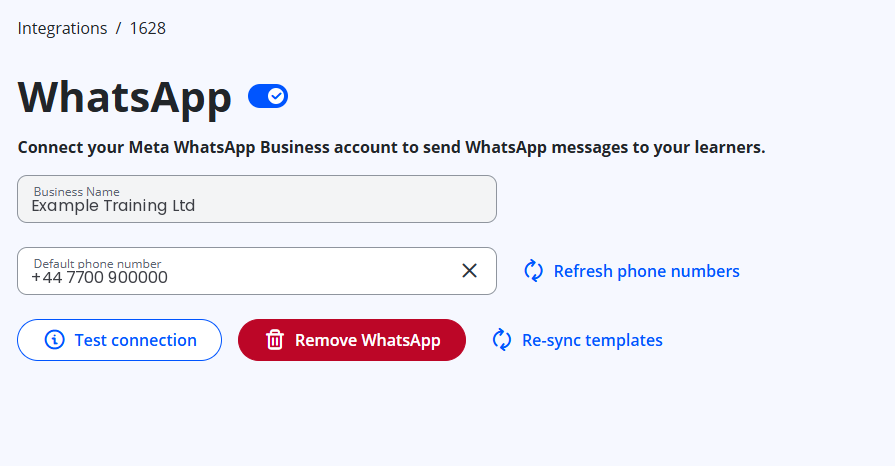
- Back in Integration Hub, choose your default phone number — messages are sent from this number.
- Select Test connection to check it works.
Step 2: Switch WhatsApp On for Engage
Integration Hub › Integrations
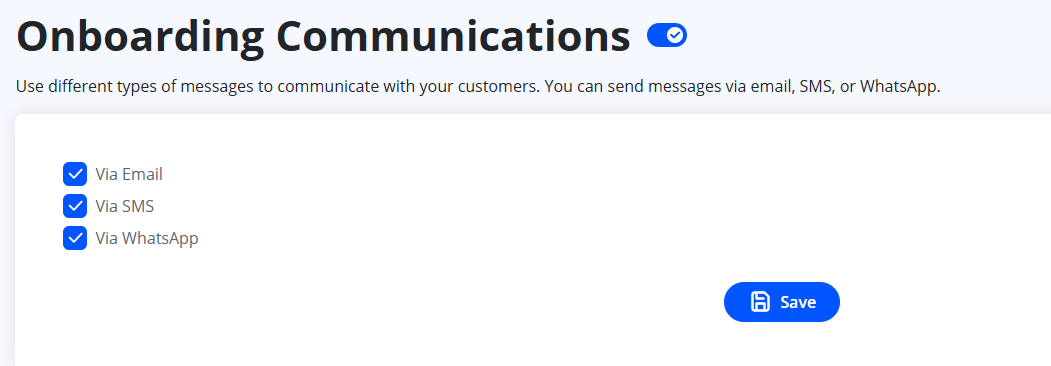
- Open the Engage Communications integration.
- Tick Via WhatsApp then save.
The Via WhatsApp option only appears once WhatsApp is connected.
Step 3: Get Your Templates Approved
Meta WhatsApp Manager, then Integration Hub › WhatsApp
Meta only lets a business start a conversation with a template it has approved, so every WhatsApp message uses one — you can't send free text.
- Create your message templates in WhatsApp Manager and submit them to Meta for approval.
- Use placeholders such as
{{1}}and{{2}}for anything that changes per learner, like their name or login link. You'll fill these in from Engage. - Once Meta approves a template, go to Integration Hub › WhatsApp and select Re-sync templates.
⚠️ Important: Only approved templates appear in Engage— pending, paused, or rejected templates don't. To change a template's wording, edit it in Meta; it then needs approving again.
Step 4: Check Learner Mobile Numbers
Learner record in Engage.
Messages go to the mobile number on the learner's Engage record. Without one, the WhatsApp option is greyed out for that learner.
Engage tidies the number before sending — spaces, dashes, and brackets are removed, then:
| Number on the record | Sent to |
|---|---|
| 07700 900123 | +447700900123 |
| +353 85 123 4567 | +353851234567 |
| 353851234567 | +353851234567 |
A number starting with 0 is treated as a UK number. Always store non-UK numbers with their country code.
Step 5: Send a One-Off Message
Learner page › Interactions
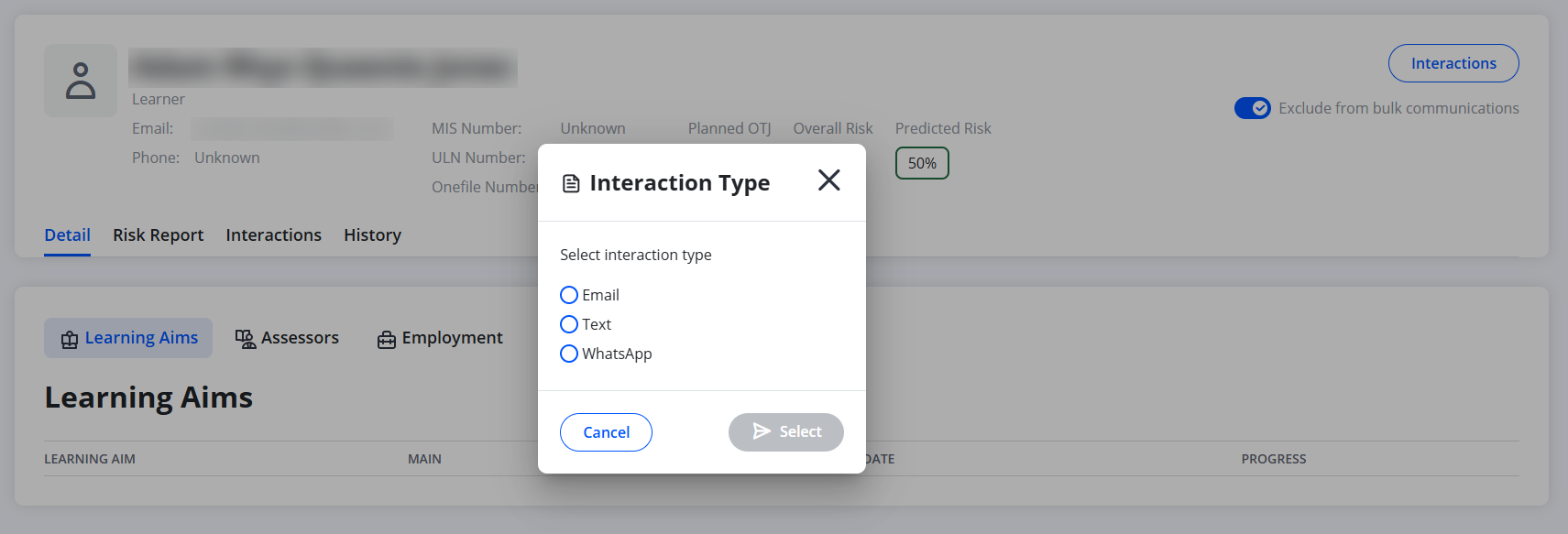
- Open the learner and select Interactions.
- Choose WhatsApp.
- Pick an approved template from the dropdown list.
- Match each placeholder to a merge field — for example,
{{1}}to Learner First Name and{{2}}to Learner Login Link. - Select Send.
A green WhatsApp message sent successfully banner confirms the message is on its way, and WhatsApp message sent is added to the learner's activity log under Communication.
Step 6: Send WhatsApp Messages from Engage
Interactions › Templates
- Click Interactions from the main menu, then click Templates.
- Click Create template and choose the type WhatsApp.
- Leave the User role set to Learner. WhatsApp messages can only be sent to learners.
- Pick the approved Meta template and match each placeholder to a merge field.
- Save the template.
Learners must have a mobile number on their record to receive WhatsApp messages.
Troubleshooting
If something isn't working, find what you see in the left column.
| What you see | What to check |
|---|---|
| WhatsApp is greyed out | WhatsApp isn't switched on for Engage in Integration Hub, or the learner has no mobile number. The message under the options tells you which. |
| No templates in the list | No templates are approved in Meta yet, or they haven't synced. Select Re-sync templates in Integration Hub › WhatsApp. |
| "Messaging is currently disabled for this client" | The Messages integration is off, or Via WhatsApp isn't ticked for Engage. |
| Placeholders look wrong, or the template won't save | The template was changed in Meta. Select it again and re-match the placeholders. |
| The activity log says sent, but the learner got nothing | "Sent" means the message has been passed on for delivery. Check that Test connection passes in Integration Hub, the template hasn't been paused by Meta, the learner's number is on WhatsApp, and the learner hasn't blocked your business. Meta's messaging limits on your number can also delay or stop messages. |
| A learner's reply isn't showing | That's expected. Messaging from Engage is one-way, and replies aren't shown. |
| Templates stopped working | WhatsApp may have been disconnected in Integration Hub. Your Engage templates are kept and work again once you reconnect. |
Before You Contact Support
If you still need help, it speeds things up to have ready: the learner's name, the date and time of the send, the template name, and whether the activity log shows "WhatsApp message sent".
Terminology
The terminology used in this article may differ depending on your Centre's configuration.
Related Articles
Need Help?
If you need assistance, please contact Onefile Support or your internal support team.