
✨ New feature alert
This feature is available from Thursday, 5th November 2026.
Overview
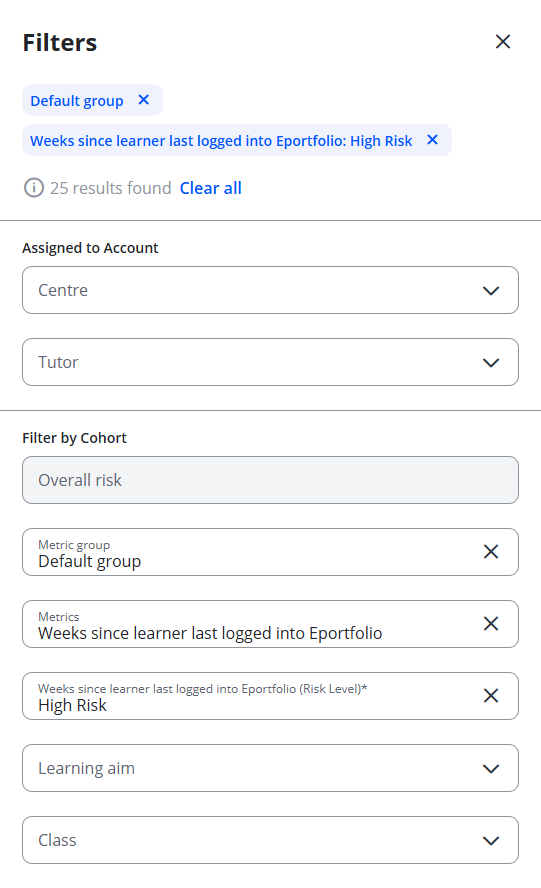
On the Active tab of the Learners page, you can filter learners by their overall risk, or by individual metrics within a metric group. This helps you quickly find learners who need attention in a specific area, such as attendance or progress.
What's Changed?
| Before | From 5 November 2026 |
|---|---|
| Metric Risk filter | Renamed Overall risk |
| Learners could only be filtered by overall risk. | A new Metrics filter lets you filter by individual metrics, with a risk level for each. |
User Roles
This feature can be used by:
- Admin
- User
Steps to Filter by Individual Metrics
- Click Learners in the navigation menu and open the Active tab.
- Select a single metric group. The Metrics filter appears.
- Pick one or more metrics.
- Choose a risk level for each metric you picked.
Learners are shown only if they match every metric and risk level you picked.
⚠️ Important: Overall risk and the Metrics filter can't be used together.
Saving a Metric Filter to Your Dashboard
You can save metric filters to your Dashboard in the same way as other filters, so you can come back to the same view quickly.
Tips & Notes
- The Metrics filter only appears when a single metric group is selected.
- If no learners are shown, try removing a metric or changing a risk level, because learners must match all of your selections.
- Risk scores refresh overnight, unless Refresh Metrics is clicked.
Terminology
The terminology used in this article may differ depending on your Centre's configuration.
Related Articles
- How is the overall risk calculated?
- Create metric groups
- How to enable a metric
- When does Engage information update?
Need Help?
If you need assistance, please contact Onefile Support or your internal support team.