
Overview
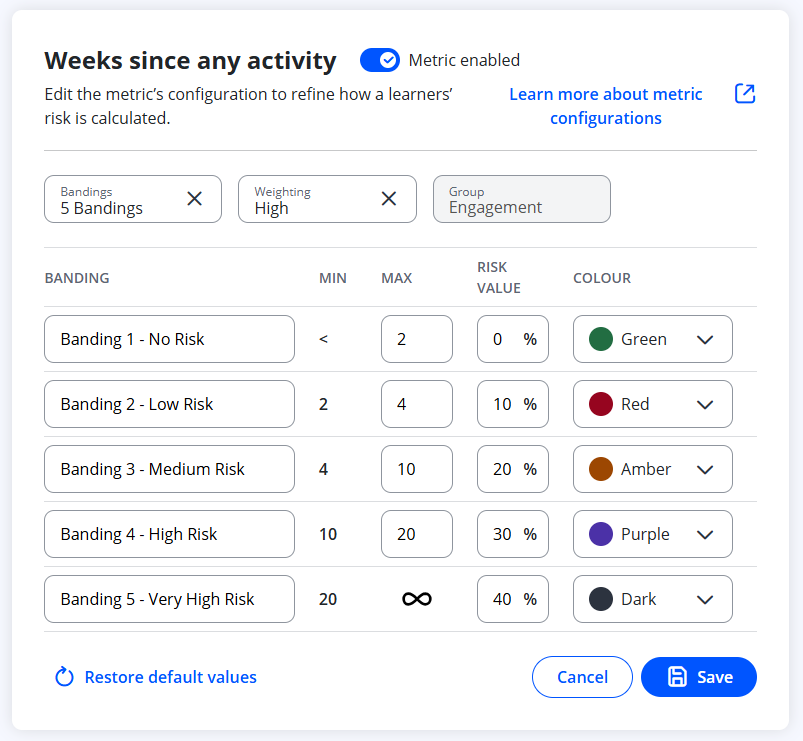
Metrics allow Centres to configure how learner risk indicators and performance measures are calculated. Admin users can adjust settings such as weighting, banding, week limits, risk values and colours used to display the metric.
User Roles
This feature can be used by:
- Admin
Steps
How to Create or Edit a Metric
- Click Metrics from the navigation menu.
- Locate the metric you wish to create or edit.
- Click the three dots (⁝) next to the metric.
- Select View.
- Click Edit metric.
- Update any of the available configuration areas:
- Weighting
- Banding
- Max weeks
- Risk value
- Colour
- Click Save to apply your changes.
Tips & Notes
- Changes to metrics apply immediately.
- Metrics influence risk dashboards and learner analytics — updates should be reviewed carefully.
- Only Admin users can create or edit metrics.
Terminology
Please note that the terminology used in this article may differ depending on your Centre.
Related Articles
Need Help?
If you encounter any issues or have questions, please contact Onefile Support or your internal support channels.