
Overview
This guide will help you connect to your Onefile BI Database, which contains your organisation’s exported data tables. These exports provide read‑only access for analysis, reporting, and integration with business intelligence tools.
Your organisation must first purchase the Data Export (database tables). Once enabled, the Onefile Support Team will provide your:
- Database Name
- Username
- Password (securely)
These credentials are required for authentication and secure access.
Connection Details
The information below is required when connecting using Power BI, SSMS, Azure Data Studio, or any SQL client:
- Server Type: Database Engine (if required)
- Server Name: onefilebi.database.windows.net
- Database Name: provided by Onefile Support
- Username: provided by Onefile Support
- Password: provided securely by Onefile Support
Important
To connect to the database, ensure that outbound access to:
onefilebi.database.windows.net (port 1433)
is permitted on your network.
You can test the connection using Windows PowerShell:
Test-NetConnection -ComputerName onefilebi.database.windows.net -Port 1433
Connection Examples
Below are step‑by‑step examples for connecting via Power BI and SQL Server Management Studio (SSMS).
Power BI
- Open Power BI Desktop.
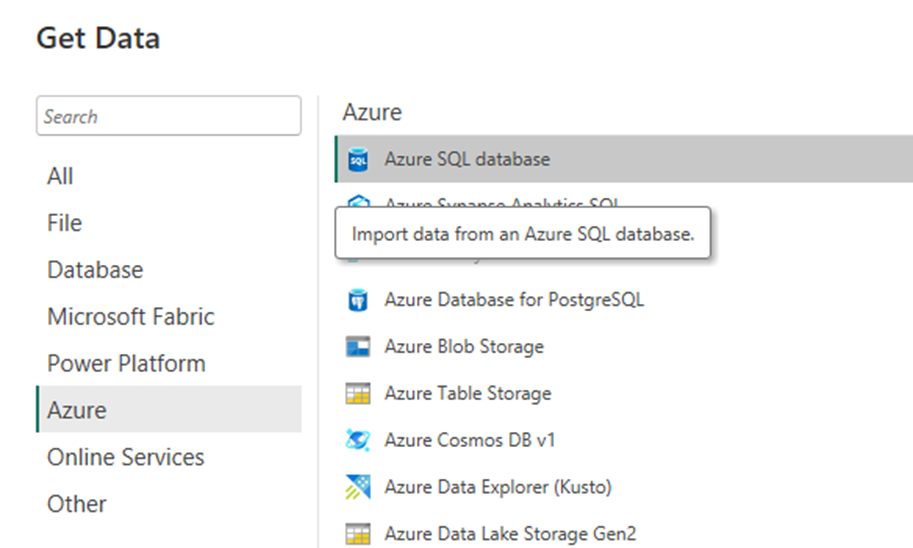
- Click Get Data.
- Select Azure.
- Click Azure SQL Database.
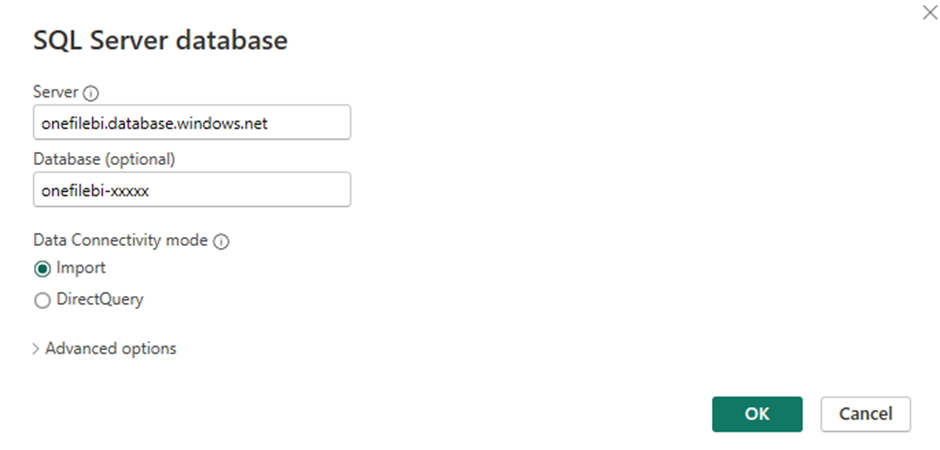
- Enter your Server Name and Database Name.
- Click OK.
- Select Database authentication.
- Enter your Username and Password.
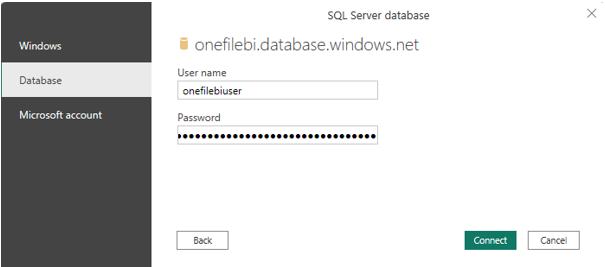
- Click Connect.
You will now see all available tables in the Power BI Navigator:
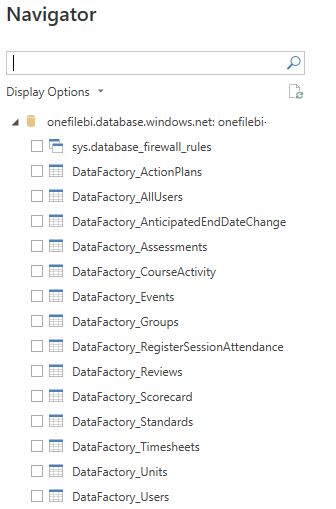
Table Relationships in PowerBI:

SSMS (SQL Server Management Studio)
- Open SSMS.
- Click Connect > Database Engine.
- Enter the Server Name.
- Select SQL Server Authentication.
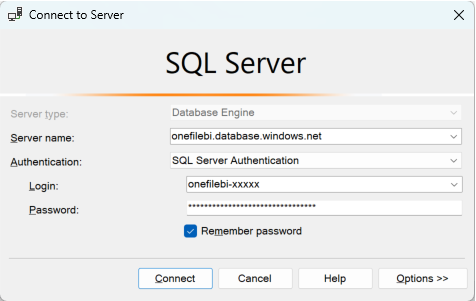
- Enter the provided Username and Password.
- Click Options.
- Go to Connection Properties.
- Enter your Database Name.
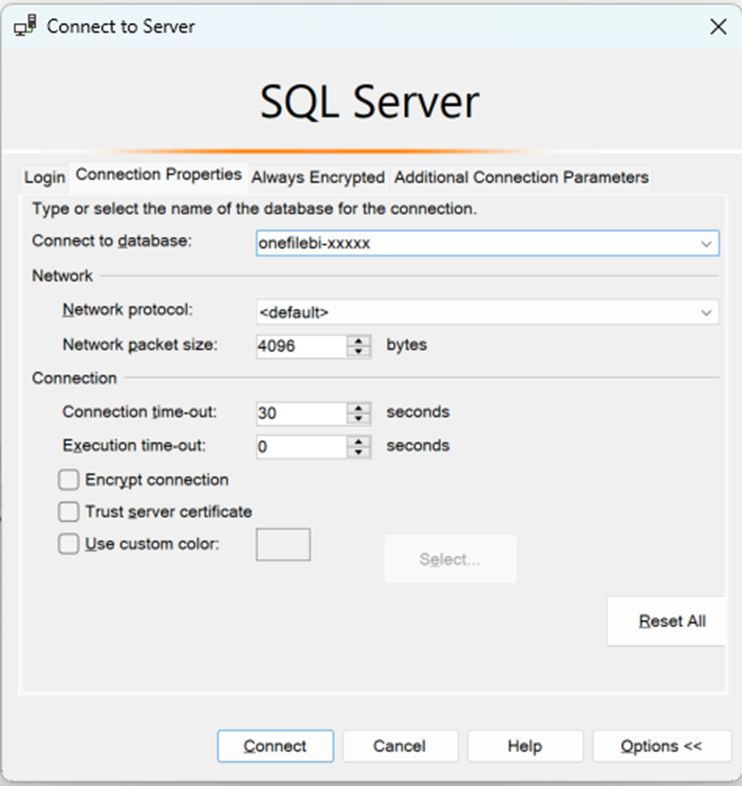
- Click Connect.
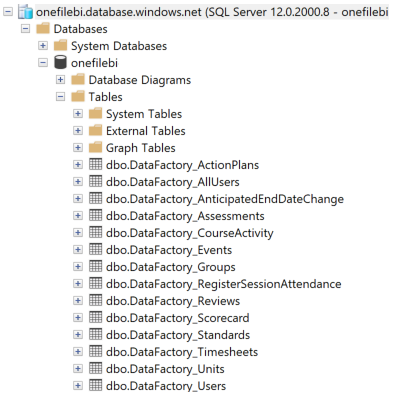
Your available database tables will now appear in the Object Explorer.
Linked Servers (SQL)
For guidance on creating a linked server between SQL Server and Azure SQL Database, please follow Microsoft’s documentation. Creating a Linked Server from SQL Server to Azure SQL Database.
Important: Use one of the following drivers:
- Microsoft OLE DB Driver for SQL Server (MSOLEDBSQL)
- Microsoft OLEDB Provider for ODBC Drivers (MSDASQL)
Do NOT use SQLNCLI or SQLNCLI11, as they are not supported for Azure SQL linked servers.
Tips & Notes
- If you cannot connect, check firewall rules with your IT department.
- Credentials are case‑sensitive — ensure they are entered exactly as provided.
- Only read‑only access is permitted for Data Export tables.
- Tables update daily based on your Centre’s setup.
Terminology
The terminology used in this article may differ depending on your Centre’s configuration or BI setup.
Need Help?
If you need assistance, please contact Onefile Support or your internal support team.