
Overview
Funding Calculator Grouping allows Client Owners to organise KSB criteria into custom groups before applying weightings. These custom groups function in the same way as Topic-based groupings and are used in the funding calculation process.
User Roles
This feature can be used by:
- Client Owner
Steps to Use Funding Calculator Grouping
- Click Manage Standards.
- Click View Funding Calculators.
- Click Setup a Calculator.
- Make your required amendments to the Funding Calculator.
- Click Size KSBs by custom groups.
This will display a full list of KSB criteria, which you can then allocate to custom groups.
Grouping Criteria
- Select the criteria you wish to include in a custom group.
- Click Group.
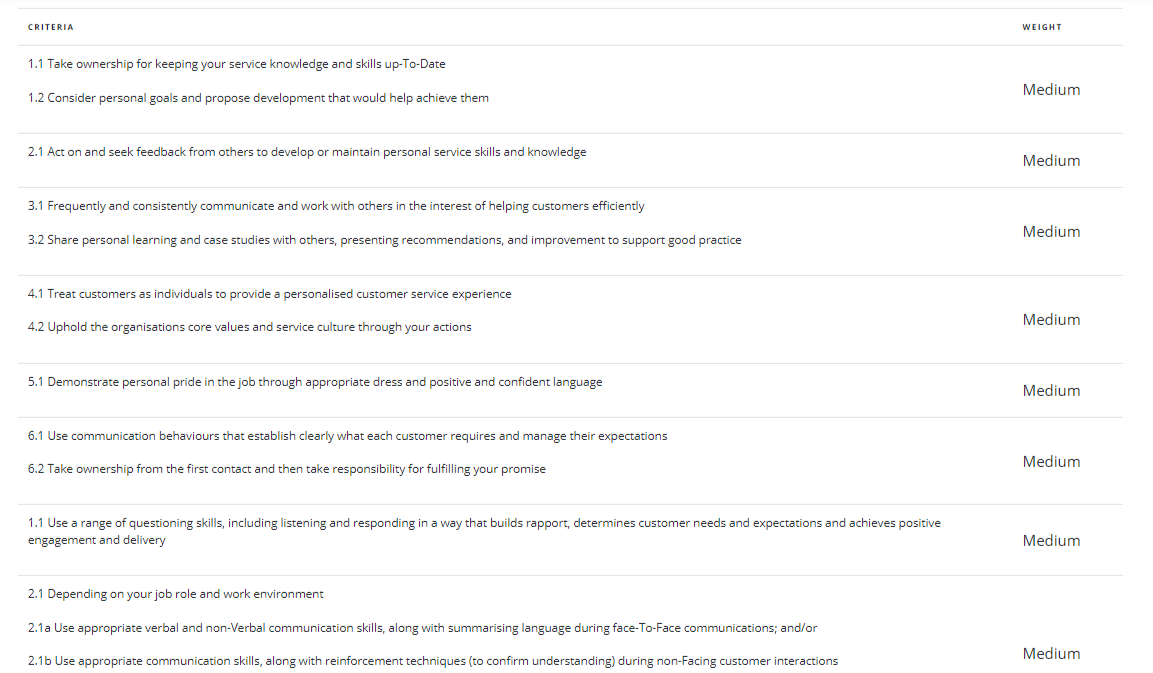
- Once grouped, you will be able to set a weighting for that group.
- Repeat until all criteria are grouped.
Note: All criteria must be grouped — even if placed in a group on their own.
Finalising the Calculator
- Click View Summary.
- Click Finish Setup.
When the Funding Calculator is next assigned to an applicant, the newest version will automatically be used.
What the User Sees
- The applicant’s view has not changed — they will not see grouping.
- Custom Grouping functions exactly like Topics in the calculation logic.
Example Summary View
Tips & Notes
- Grouping helps structure weightings more logically across KSBs.
- Review groups carefully before finalising — changes require creating a new version.
- New Funding Calculators must be created in RPL if Rating Scales are enabled.
Terminology
The terminology used in this article may differ depending on your Centre’s configuration.
Related Articles
- Setup Funding Calculator
- Creating New Versions of Funding Calculators
- Custom Rating Scales
- View Applicants Assigned to Funding Calculator Versions
Need Help?
If you need assistance, please contact Onefile Support or your internal support team.