
Overview
Locking a Delivery Plan finalises the content so it can be viewed by all users with access to the learner’s portfolio. Once locked, the Delivery Plan becomes read‑only and can no longer be edited. A locked Delivery Plan is required for visibility on the learner’s portfolio in Onefile Eportfolio.
User Roles
This feature can be used by the following roles (with permission):
- Centre Manager
- User Manager
- Assessor
- Trainee Assessor
Centre Setting
- Enable Delivery Plans must be turned on.
Permissions
- Can manage learner's delivery plans
- Users with Can update learner’s episode from a delivery plan can also update OTJ values when locking the plan.
Steps
How to Lock a Learner’s Delivery Plan
- Navigate to the learner’s Portfolio.
- Click the Delivery Plan tab.
- Click Actions.
- Click Lock.
- Click Lock Plan to confirm.
Once locked, the Delivery Plan becomes visible to all users with access to the learner’s portfolio.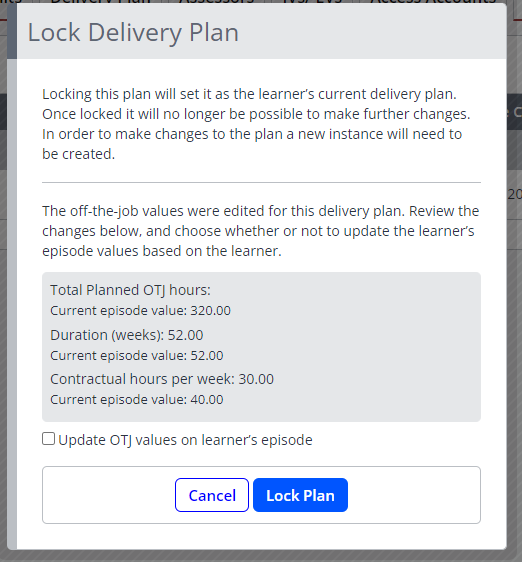
Tips & Notes
- Only Delivery Plans in Draft status can be edited.
- If a Delivery Plan is locked and needs changes, you will need to create a new instance by selecting Create new Delivery Plan.
- Locking ensures consistency and prevents accidental changes once the Delivery Plan is finalised.
Terminology
Please note that the terminology used in this article may differ depending on your Centre.
Related Articles
- How to Create a Delivery Plan for an Individual Learner
- Delivery Plan Look‑up Tables
- How to Publish a Delivery Plan Template
Need Help?
If you encounter any issues or have questions, please contact Onefile Support or your internal support team.