
Overview
You can now add a logo to a header and footer of a form.
User Roles
This process can be completed by:
- Admin
Steps to Unlock an Enrol Onboarding Form
- Click Learners in the left-hand navigation bar.
- Locate the learner the form is associated with.
- Click the three dots next to the learner.
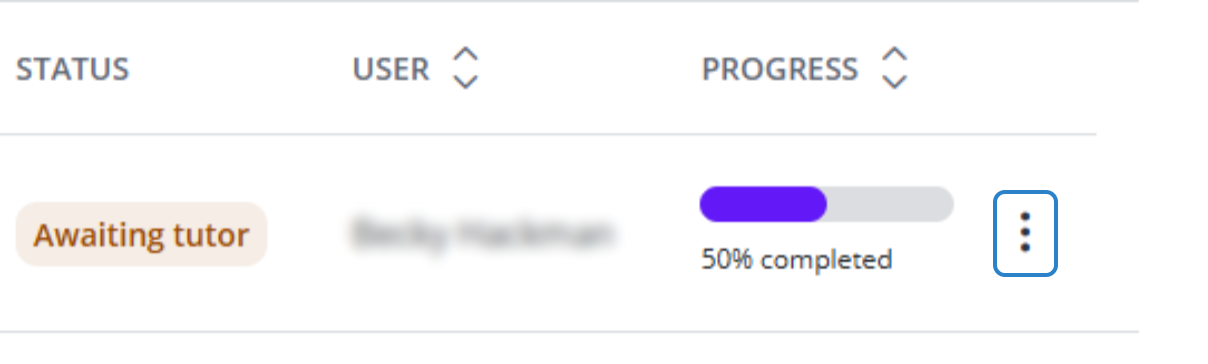
- Click View.
- Next to the form that needs unlocking, click the padlock icon.
 Select the stage you wish to return the form to
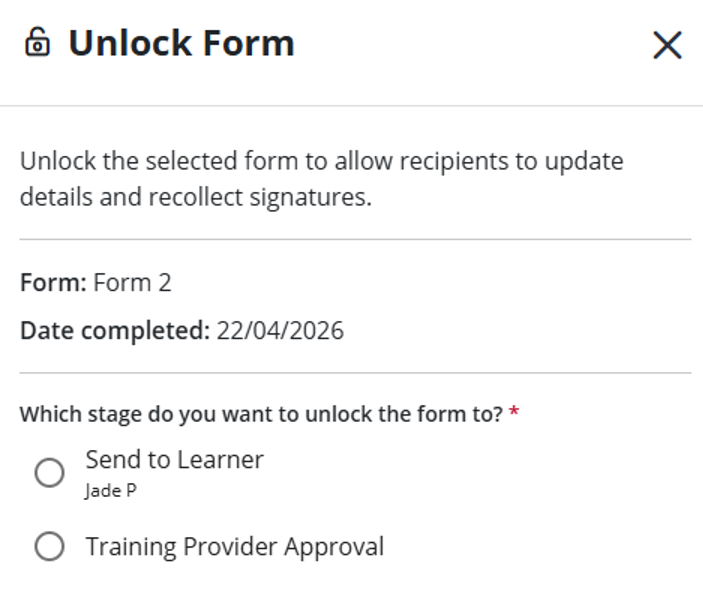 7. Enter a reason for unlocking the form and click Unlock form.
The form will reopen at the selected stage, allowing the learner, employer, or Training Provider to make the required amendments.
Tips & Notes
- Learner's will see the logo when opening the form.
Terminology
The terminology used in this article may vary depending on your Centre’s configuration.
Related Articles
Need Help?
If you need assistance, please contact Onefile Support or your internal support team.