
✨Updated feature alert
This feature update is available from Thursday, 22nd October 2026.
Overview
You can easily unlock a completed Enrol onboarding form and return it to a previous stage in the workflow. If an error is identified after submission, the form can be unlocked and sent back for correction — there is no requirement to create a new form.
User Roles
This process can be completed by:
- Admin
Steps to Unlock an Enrol Onboarding Form
- Click Learners in the left-hand navigation bar.
- Locate the learner the form is associated with.
- Click the three dots next to the learner.
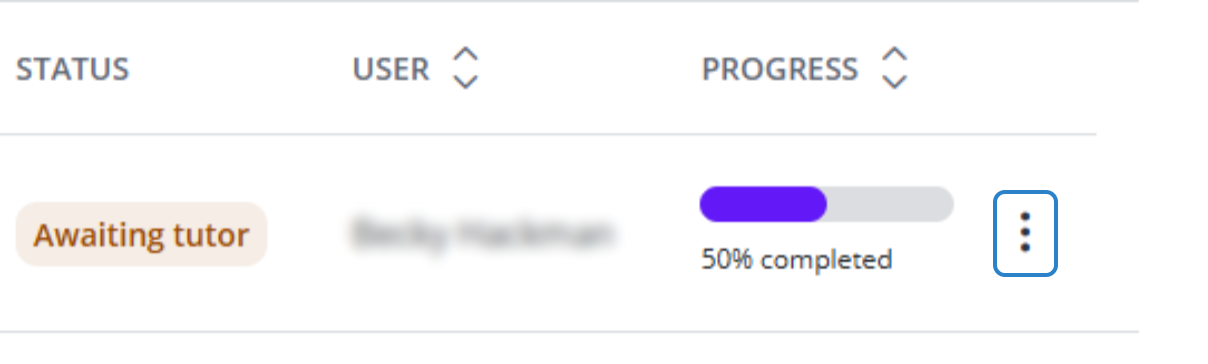
- Click View.
- Next to the form that needs unlocking, click the padlock icon.
 Select the stage you wish to return the form to
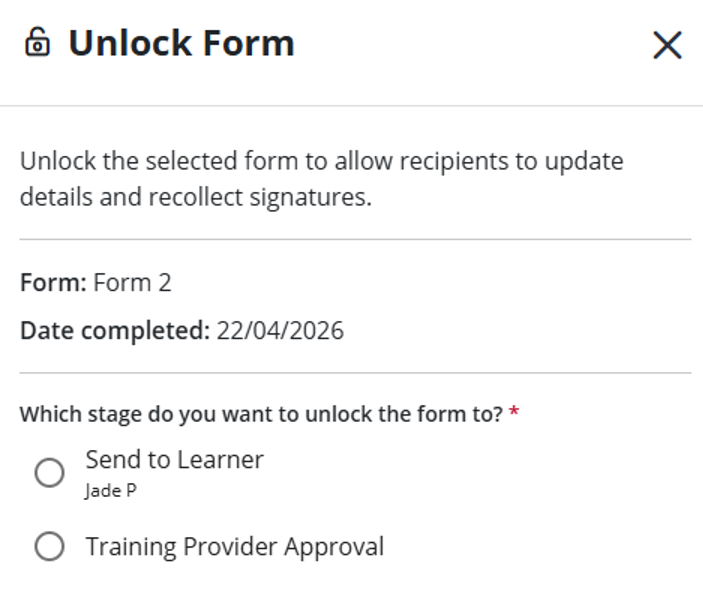 7. Enter a reason for unlocking the form and click Unlock form.
The form will reopen at the selected stage, allowing the learner, employer, or Training Provider to make the required amendments.
Tips & Notes
- Training providers can now unlock an enrolment or ad-hoc form at any point in its workflow. Before, you could only unlock a form once it was completed. Now you can send a form back to the learner, employer or training provider to fix a mistake as soon as you spot it. No one has to sign something they know is wrong just so the form can be reopened
- You can only send a form back to an earlier stage. If the form isn’t completed, the Unlock window only lists the stages before the one it’s at now. For a completed form, every stage is still available.
Unlock is hidden if there’s nothing to go back to, for example when the form is still on its first stage.
- After unlocking, you may need to notify the user responsible for the next stage.
- All previously entered data remains intact unless manually changed.
- Unlocking does not create a duplicate form — it simply reopens the existing one.
- Completed forms can be unlocked for enrolled learners, enabling updates and re-submission through a new learner portal link.
- The Send Back and Unlock actions now show the employer and contact name the form is being sent back to, so users can confirm they're sending it to the right place.
Terminology
The terminology used in this article may vary depending on your Centre’s configuration.
Related Articles
Need Help?
If you need assistance, please contact Onefile Support or your internal support team.