
✨ Updated feature alert
This feature update is available from Thursday, 19th November 2026.
Overview
Workflows allow Admins to configure structured onboarding journeys for learners. A workflow is a sequence of steps that can include Custom Pages, Enrol forms, RPL steps and third-party integrations. Editing a workflow lets you update content, reorder steps, add conditions and refine the onboarding experience before publishing.
What's Changed?
| Before | From 19 November 2026 |
|---|---|
| The workflow was shown on a single page. | The workflow page has two tabs: Workflow plan and Programmes. |
| Steps were numbered within each stage. | Each stage is shown as a card (for example, Stage 1: …), and steps are numbered across the whole workflow. |
| Stages were always expanded. | Stages can be collapsed. A collapsed stage shows how many steps it has and how many are conditional. |
| Every learner on a workflow got every step. | Steps can be made conditional, so each learner only gets the steps that apply to them. |
User Roles
This feature can be used by:
- Admin
The Workflow Page
| Tab | What it shows |
|---|---|
| Workflow plan | Every stage in order as a card, with its steps numbered across the whole workflow. Conditional steps show a summary, such as Only if LLDD = Yes. |
| Programmes | The programmes linked to the workflow. |
Steps to Edit a Draft Workflow
- Click Workflows from the left-hand menu.
- Click the three dots next to the workflow you want to edit.
- Select Edit.
- On the Workflow plan tab, make the required changes to the steps, their order or their content.
- To make a step conditional, open the step and use the Who does this step? tab. See Make Workflow Steps Conditional in Enrol Onboarding.
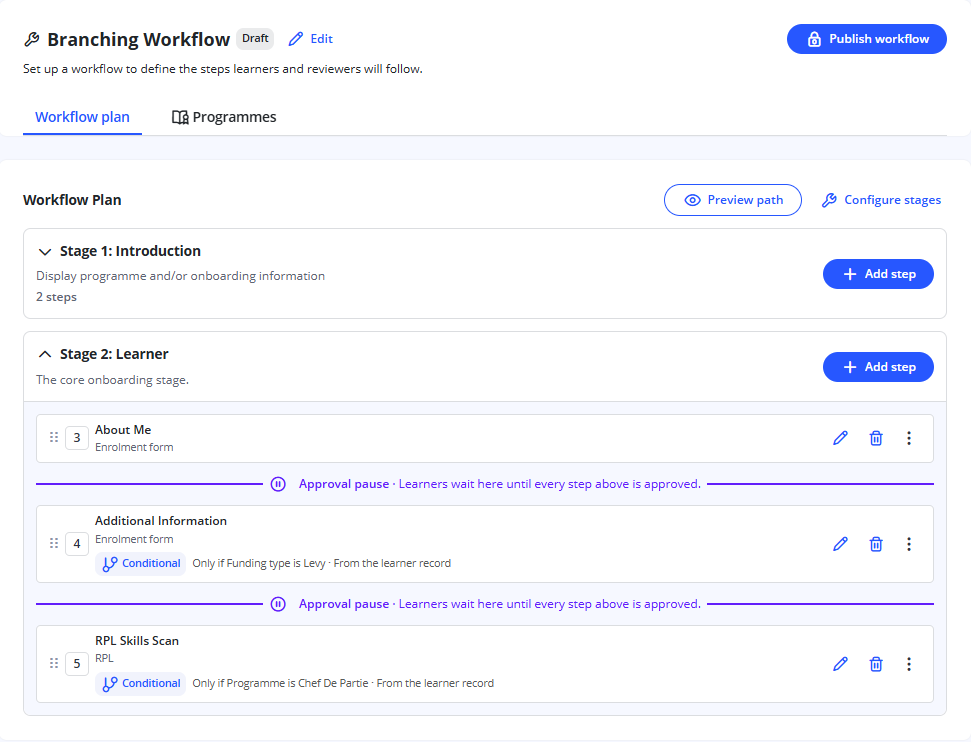
- Click Publish Workflow when you're ready to make the workflow active.
⚠️ Important: Only workflows in Draft status can be edited. If a workflow is already published, duplicate it and edit the copy.
Tips & Notes
- Collapse the stages you aren't working on to keep long workflows easy to scan.
- If your workflow has conditional steps, preview a few example learners before publishing.
- Review the workflow from the learner's perspective to make sure it's clear and easy to complete.
Terminology
The terminology used in this article may differ depending on your Centre's configuration.
Related Articles
- Make Workflow Steps Conditional in Enrol Onboarding
- Add steps into a workflow within Enrol Onboarding
- Duplicate a workflow within Enrol Onboarding
- Create a Programme within Enrol Onboarding
Need Help?
If you need assistance, please contact Onefile Support or your internal support team.