
Overview
When you plan a sample against a learner and unit, you configure the planned sampling settings — the assessment method you intend to sample, the process, and an optional task reminder. This guide, for the Default IQA, walks through those settings.
User Roles
This feature can be used by:
- Internal Quality Assurer (IQA)
Centre Settings
No additional Centre settings are required. However, you must be assigned as the Default IQA for the learners you want to sample.
Steps to Configure Planned Sampling Settings
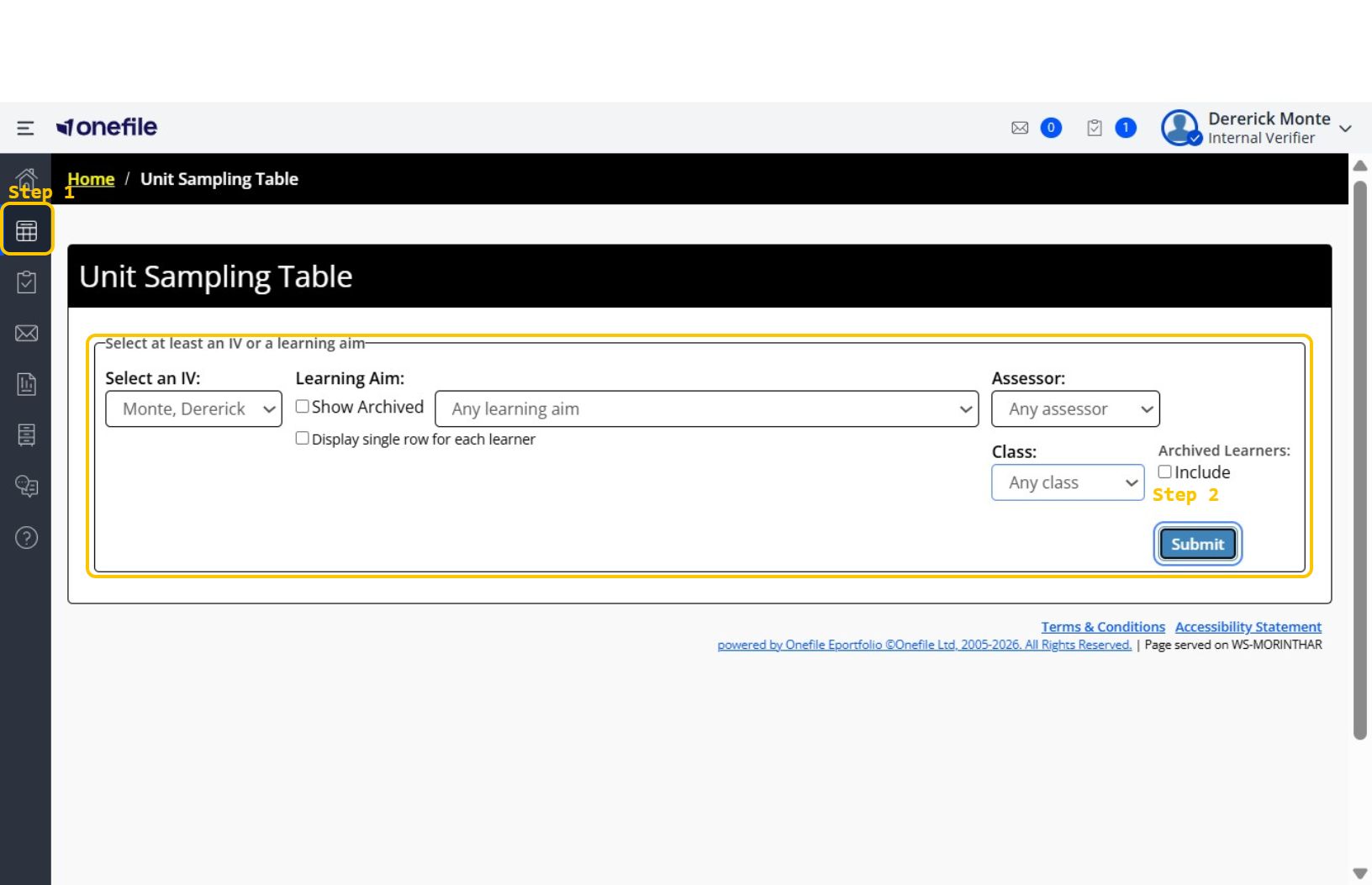
- Click Unit Sampling from the main navigation menu.
- Set your filters (for example, by IQA or Learning Aim), then click Submit.
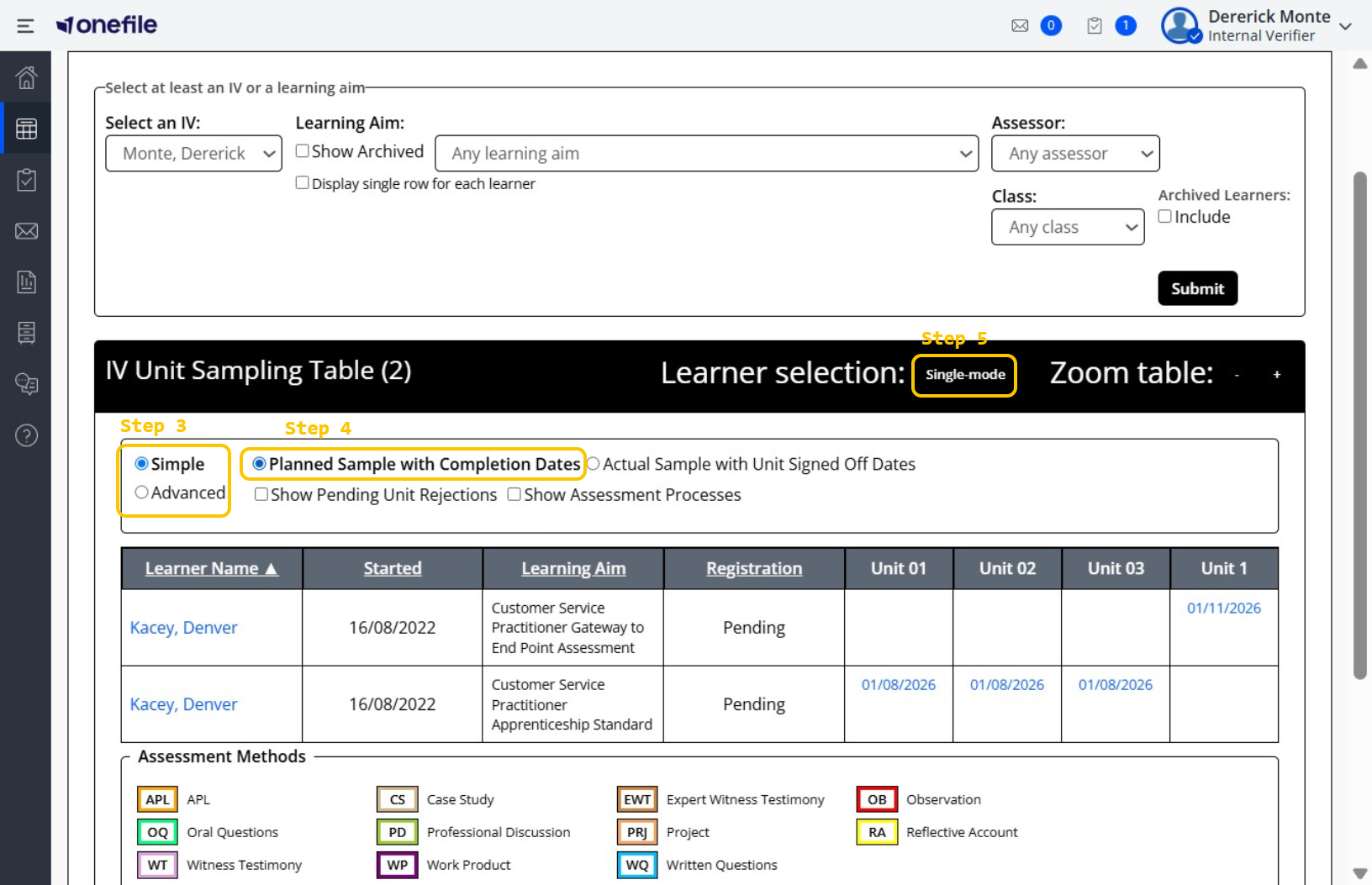
- Choose your view — Advanced or Simple.
- Select Planned Sample with Completion Dates.
- Click Single-mode
- Select the learner and unit you want to plan a sample for.
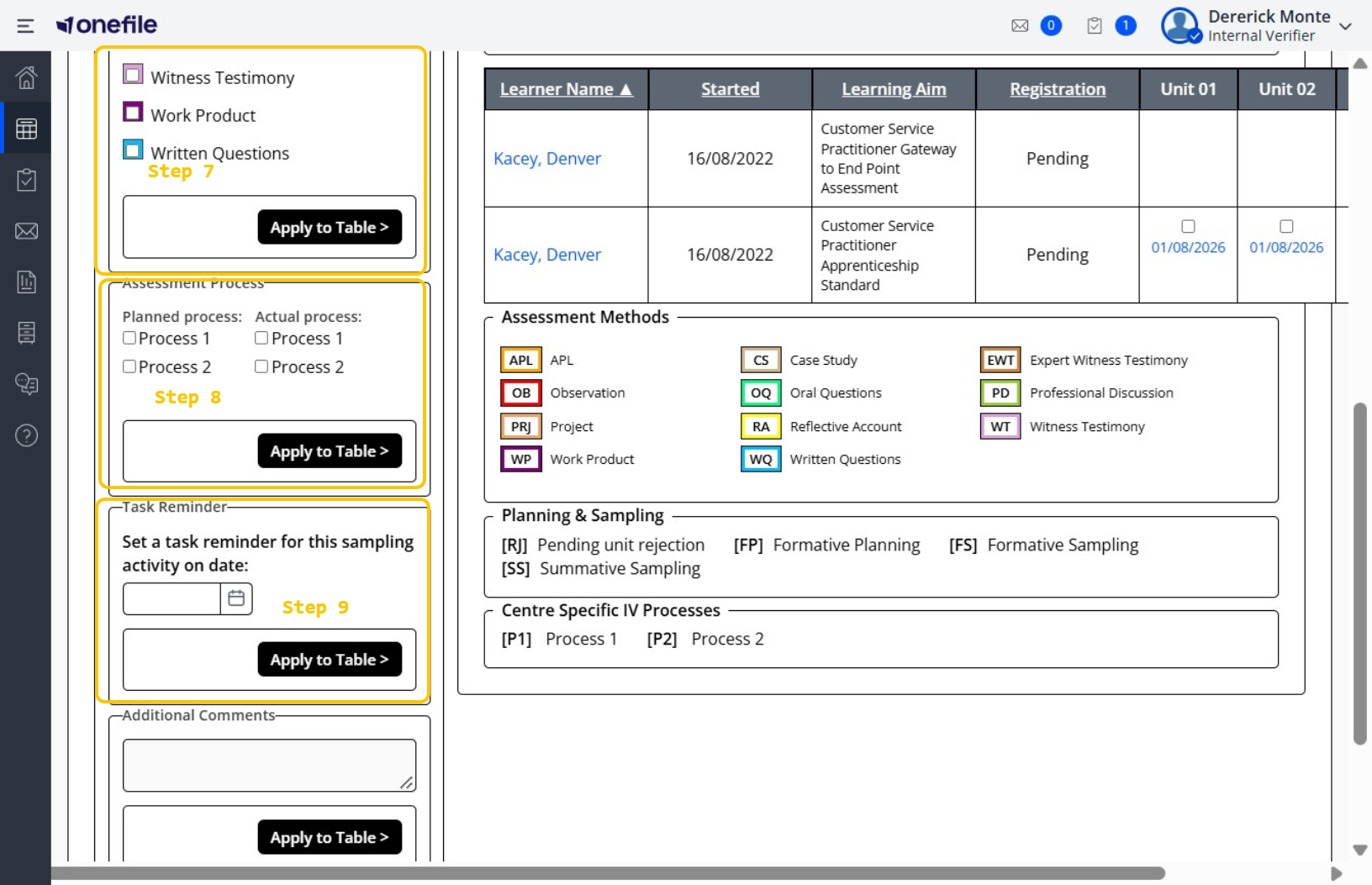
- Under Planned Sampling Method, select the assessment method you intend to sample for this learner. Only the assessment methods applicable to the Class are available to choose.
- Set the Planned process and Actual process (for example, Process 1 or Process 2).
- If you'd like a reminder, set a task reminder for this sampling activity on a chosen date.
- Click Submit to save the planned sample.
Tips & Notes
- Only assessment methods applicable to the Class appear in the Planned Sampling Method list.
- Planned sampling task reminders appear 7 days before the date you set.
- Set a task reminder so the planned sample doesn't get missed.
Terminology
The terminology used in this article may differ depending on your Centre's configuration.
Related Articles
Need Help?
If you need assistance, please contact Onefile Support or your internal support team.