
✨New feature alert
This feature is available from Thursday, 26th November 2026.
Overview
The Assessor Manager role lets staff who supervise assessors see and work with every learner belonging to the assessors in their team, without learners being assigned to them one by one. It's off by default: your Onefile account manager switches it on for your Centre, then a Centre Manager enables it and builds the hierarchy.
User Roles
This feature can be used by:
- Centre Manager
- User Manager
Steps to Set Up the Role
- Contact your Onefile account manager to enable the role. The role is off by default, and only Onefile can switch it on for your Centre.
- Enable the group. Go to Centre Settings → User Roles → Assessor Manager and enable the group.
- Set your terminology (optional). Add singular and plural names for the role in your terminology settings; the new names are used throughout the system.
- Create or move users. Create new Assessor Manager accounts from the Users page (no caseload needed), or move existing users with the Group dropdown on their Account page.
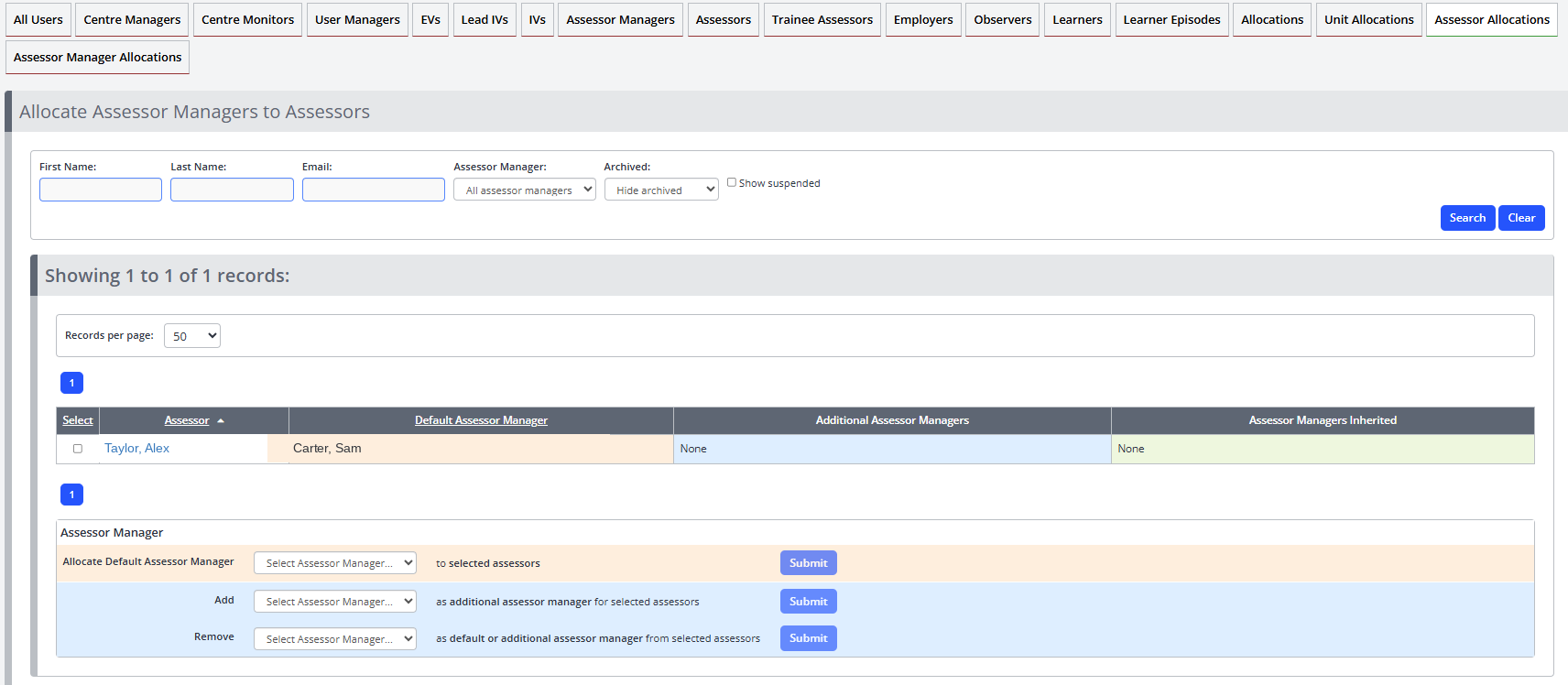
- Allocate assessors to managers. On Users → Assessor Allocations, set each assessor's Default Assessor Manager and any Additional Assessor Managers.
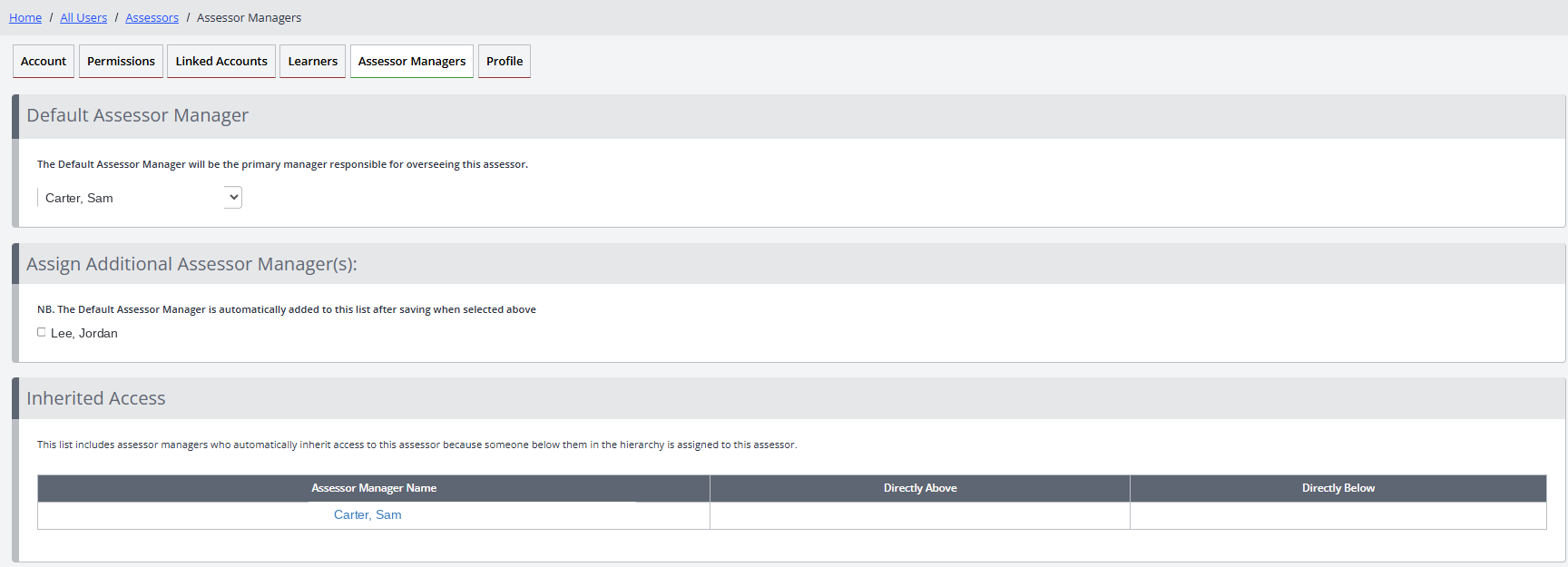
 You can also do this from the assessor's Account page, on the Assessor Managers tab.
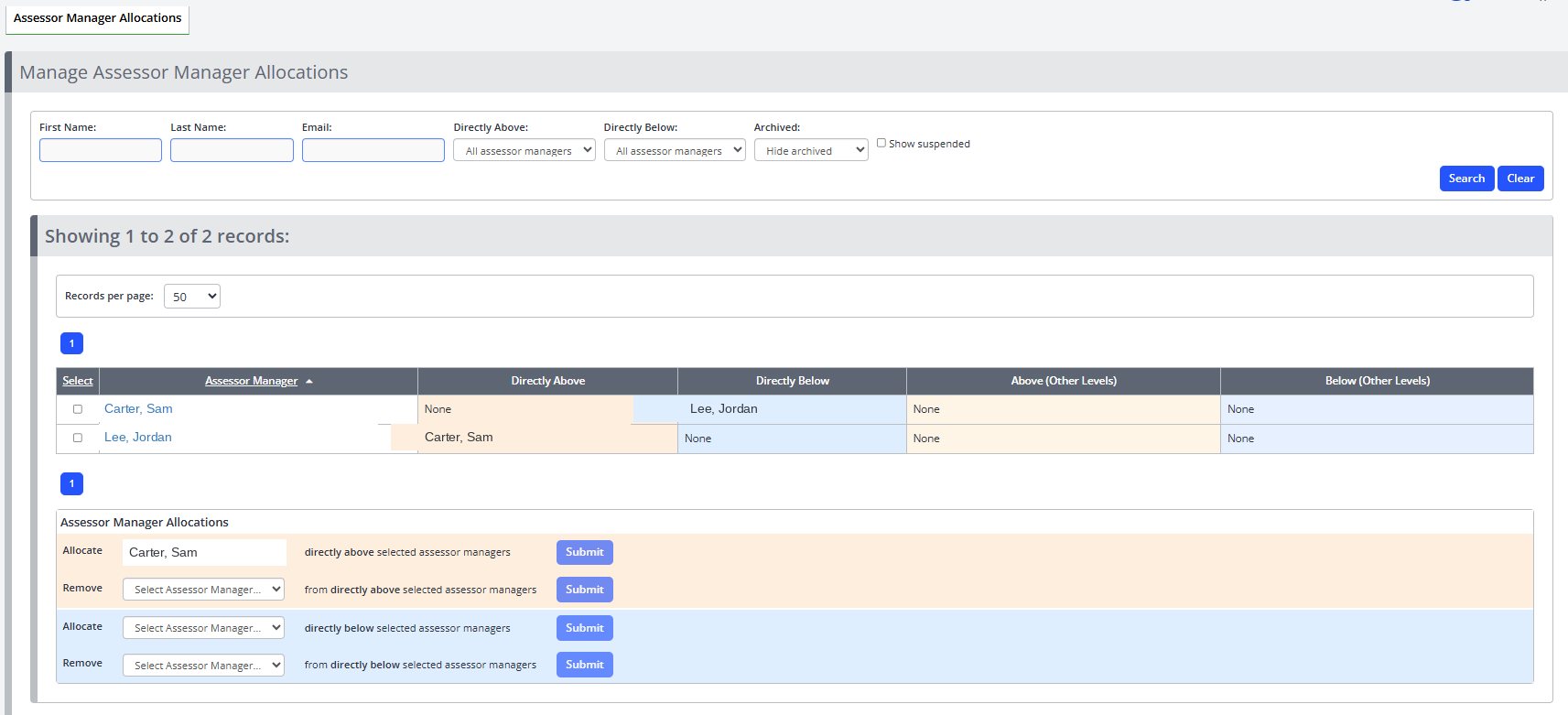
- Build the manager hierarchy. On Users → Assessor Manager Allocations, place managers directly above or below each other, in bulk if needed.
- Review permissions. Adjust the Assessor Manager role permissions, and override them for individual users where needed.
Rules the System Applies
- A hierarchy can be at most five levels deep, and circular relationships are blocked.
- A user's group can't be changed if it would break the hierarchy (for example, an assessor already allocated to a manager can't become an Assessor Manager) — the Group dropdown explains why.
- A manager already inheriting an assessor through the hierarchy isn't added to that assessor again directly.
- Group changes are recorded in the event log.
Archiving or Switching the Role Off
- Archive an Assessor Manager from their Account page. If they're a Default Assessor Manager or have managers directly below them, you'll be prompted to reassign or clear those relationships; outstanding tasks move to the new manager or complete automatically.
- If the role is switched off, it disappears from user management, dropdowns, reports and terminology. Existing Assessor Manager users can still log in.
Terminology
The terminology used in this article may differ depending on your Centre's configuration — the role may be named differently in your Centre.
Related Articles
Need Help?
If you need assistance, please contact Onefile Support or your internal support team.