
Overview
Target Progress is an indicator of where a learner is expected to be at any given point within a Unit, Learning Aim, or their overall portfolio. When Progress Weightings are enabled, Onefile uses weighted averages to calculate target progress more accurately.
Centre Setting
- Apply Weightings to Target Progress
Unit Target Progress
Target progress for each Unit is calculated using:
- Unit Start Date
- Unit Anticipated Completion Date
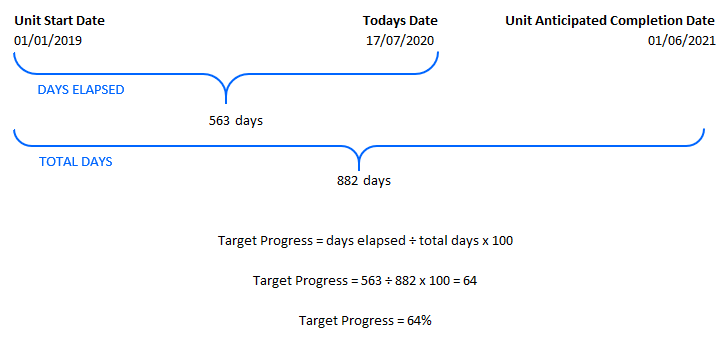
The percentage increases based on the proportion of time that has passed between these dates.
Learning Aim Target Progress
Learning Aim Target Progress is calculated by averaging the weighted Unit target progress values.
Overall Target Progress
The learner’s Overall Target Progress is calculated by averaging the weighted Learning Aim target progress values.
Example Calculation
Please download the attached spreadsheet example to see how Target Progress is calculated when Progress Weightings are applied.
Tips & Notes
- Applying Progress Weightings ensures larger or more complex Units contribute proportionally.
- If weightings are not applied, each Unit contributes equally.
- Incorrect Unit dates will affect the calculation — ensure dates are accurate.
Terminology
The terminology used in this article may be different depending on your Centre’s configuration.
Related Articles
Need Help?
If you need assistance, please contact Onefile Support or your internal support team.