
Overview
Barriers to Learning and Support Needs are two parallel sections for recording formal barriers and support needs against a learner. They are separate from anything a learner raises through a Wellbeing Check-in. Each record captures a type, dates, and the impact on learning, and you control who can see it.
At a Glance
- Add a barrier or support need with a type, dates, and impact.
- Control who can see each record.
- Records show as Ongoing or Ended, and can link to a plan.
User Roles
This feature can be used by:
- Centre Manager
- Assessor
What's Changed?
From Wednesday 28 October 2026: new barriers and support needs default to Visible to Learner: On and Visible to Employer: Off. To share a record with the employer, tick Visible to Employer before saving. The same default applies to barriers and support needs created from a wellbeing check-in. Existing records are not changed.
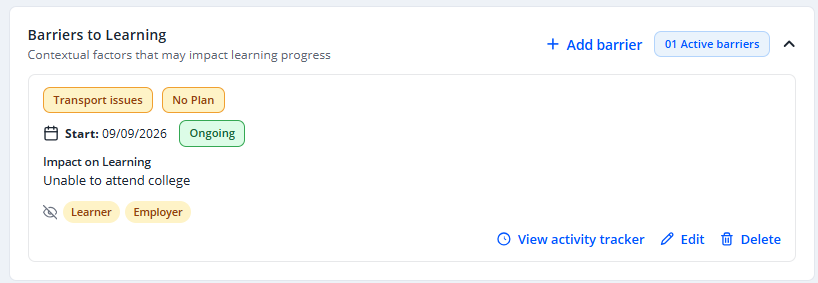
From Thursday 17 September 2026, Barriers to Learning and Support Needs cards and Support Plan rows show at a glance when a record is hidden from the learner or the employer. Previously this could only be seen by opening Edit on each record in turn.
- An eye-with-a-cross icon appears, with a chip for each audience the record is currently hidden from.
- A record that everyone can see shows nothing at all, so the indicator only appears where something is hidden.
- Chips use your Centre's own terminology for the learner and employer terms.
- Hovering over or keyboard-focusing the icon explains which audience the record is hidden from. Where a support plan cannot be made visible because a linked barrier or support need is itself hidden, the tooltip gives that reason — so it no longer needs to be looked up in Edit.
This is a display change only. Visibility is still set and changed in the same place, through the Edit window.
Steps to Add a Barrier or Support Need
- On the Barriers & Support Needs tab, select + Add barrier or + Add support need.
- Choose a Barrier Type or Support Type (required, from your Centre-configured list).
- Set a Start Date (required) and, optionally, an End Date (leave blank if the record is ongoing).
- Add a description of the impact on learning (required).
- Set Visibility — Visible to Learner and/or Visible to Employer (both on by default).
⚠️ Important: Visibility toggles override the Read Only permission. A learner or employer with Read Only access still won't see a record that is hidden from them.
Status and Layout
Each record is shown with a status based on its dates:
| Status | When it applies |
|---|---|
| Ongoing | Today is on or after the Start Date, and there is no End Date (or the End Date has not yet passed). |
| Ended | The End Date has passed. |
- Each card shows a Linked to Plan or No Plan badge.
- Cards are ordered Ongoing first, then by Start Date.
- The section header shows a live count of Ongoing records.
Tips & Notes
- You can't delete a record while it's linked to a plan — unlink it from the plan first.
- These records are separate from anything raised through a Wellbeing Check-in.
Terminology
The terminology used in this article may differ depending on your Centre's configuration.
Related Articles
- Creating and managing a support plan
- Reviewing wellbeing check-ins and acting on them
- Managing your value lists (Settings → Lookups)
Need Help?
If you need assistance, please contact Onefile Support or your internal support team.