
Overview
The Notes area is located within a learner’s portfolio and allows authorised staff to store private notes. These notes are not visible to the learner and can be used for internal tracking, safeguarding information, or important updates relevant to the learner’s progress.
Permissions
Who Can Use This Feature?
This feature can be used by the following user roles:
- Centre Manager
- Internal Quality Assurer
- Assessor
- Employer
Steps
- Access the learner’s portfolio.
- Click the Notes icon.
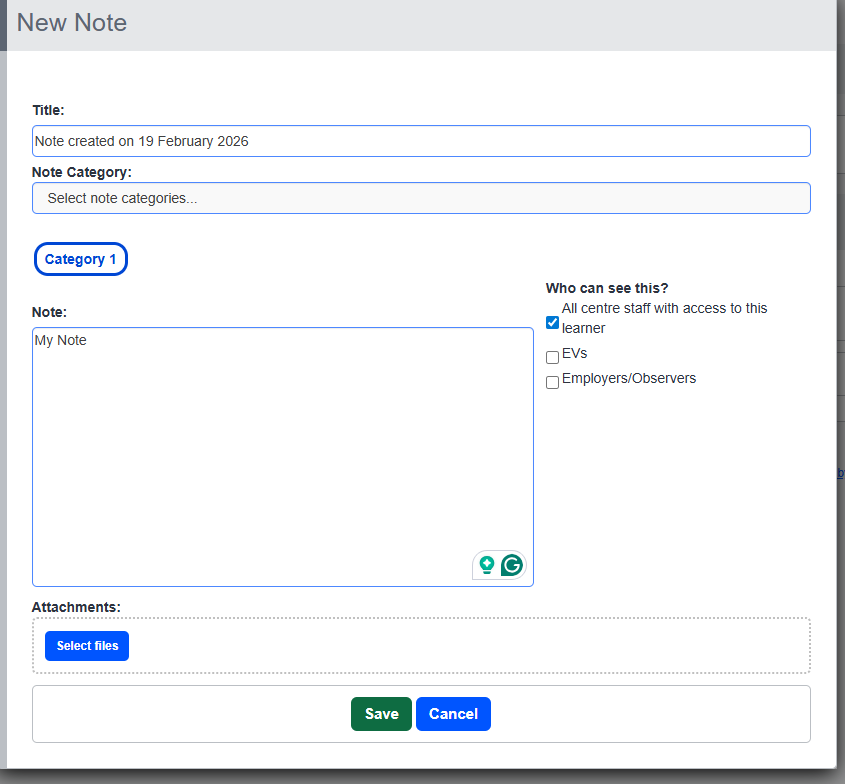
- Click Create Note.
- Enter a Title for the note.
- Select a Note Category (optional).
- Select who can view the note by checking the appropriate permissions boxes.
- Add the note text in the text field.
- Select a file to attach (optional).
- Click Save to create the note.
Tips & Notes
- Notes are private and not visible to learners.
- The Notes Report can also be found in the main reporting suite under Learner Reports.
- You can export all notes in CSV format using the Export option within the Notes report.
Terminology
Please note that the terminology used in this article may be different depending on your Centre.
Need Help?
If you encounter any issues or have questions, please contact Onefile Support or your internal support channels.